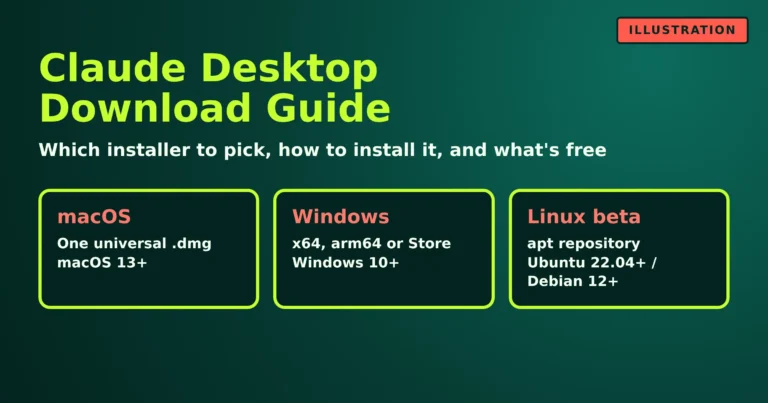
Ahsan Javaid
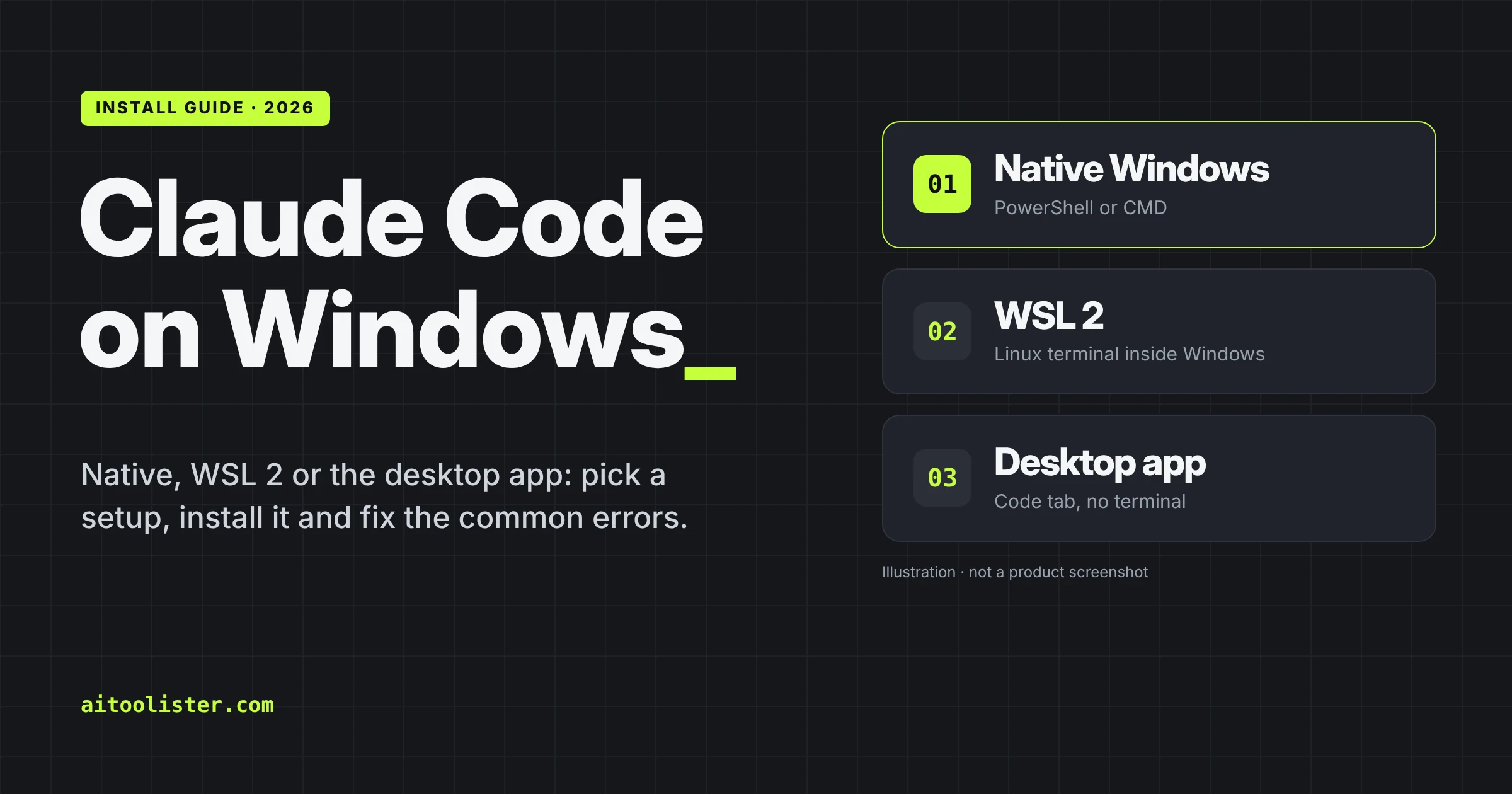
Claude Code runs on Windows 10 (version 1809 or later) and Windows 11. You can set it up three ways: natively with one PowerShell or CMD command, inside WSL 2, or in the Claude desktop app without touching a terminal. This guide helps you choose a method, install it, verify it works, and fix the most common errors. This Claude Code Windows guide is based on Anthropic’s official documentation.
Claude Code Windows Install: Quick Answer
| Method | Where you run it | How to install | Best for |
|---|---|---|---|
| Native Windows | PowerShell or CMD | One install command | Windows projects and tools |
| WSL 2 | Your Linux distribution’s terminal | The Linux install command | Linux toolchains and sandboxing |
| Desktop app | The Claude app’s Code tab | Download the installer | People who’d rather not use a terminal |
All three need an eligible account, which the next section explains.
What You Need Before Installing Claude Code
Anthropic lists these system requirements for Windows:
- Windows 10 version 1809 or later, or Windows Server 2019 or later
- At least 4 GB of RAM
- An x64 or ARM64 processor
- An internet connection in a country Anthropic supports
Your account requirements depend on how you use Claude Code. The command-line version (CLI) works with three kinds of access:
- A Claude subscription: Pro, Max, Ultra, Team or Enterprise. Your plan’s usage limits apply. The Free plan doesn’t include Claude Code.
- An Anthropic Console account: you pay for API usage with prepaid credits, billed separately from any subscription. Our breakdown of Claude API pricing explains how that works.
- A supported cloud provider: Amazon Bedrock, Google Cloud’s Agent Platform or Microsoft Foundry, usually set up by an employer.
The desktop app’s Code tab is different: it needs one of the Claude subscriptions above, not a Console or cloud provider account.
Two things you don’t need: Node.js for the recommended installer, and Administrator rights. Anthropic’s advanced setup guide is the official reference for every install option.
Native Windows vs WSL 2 vs Desktop App: Which Is Best?
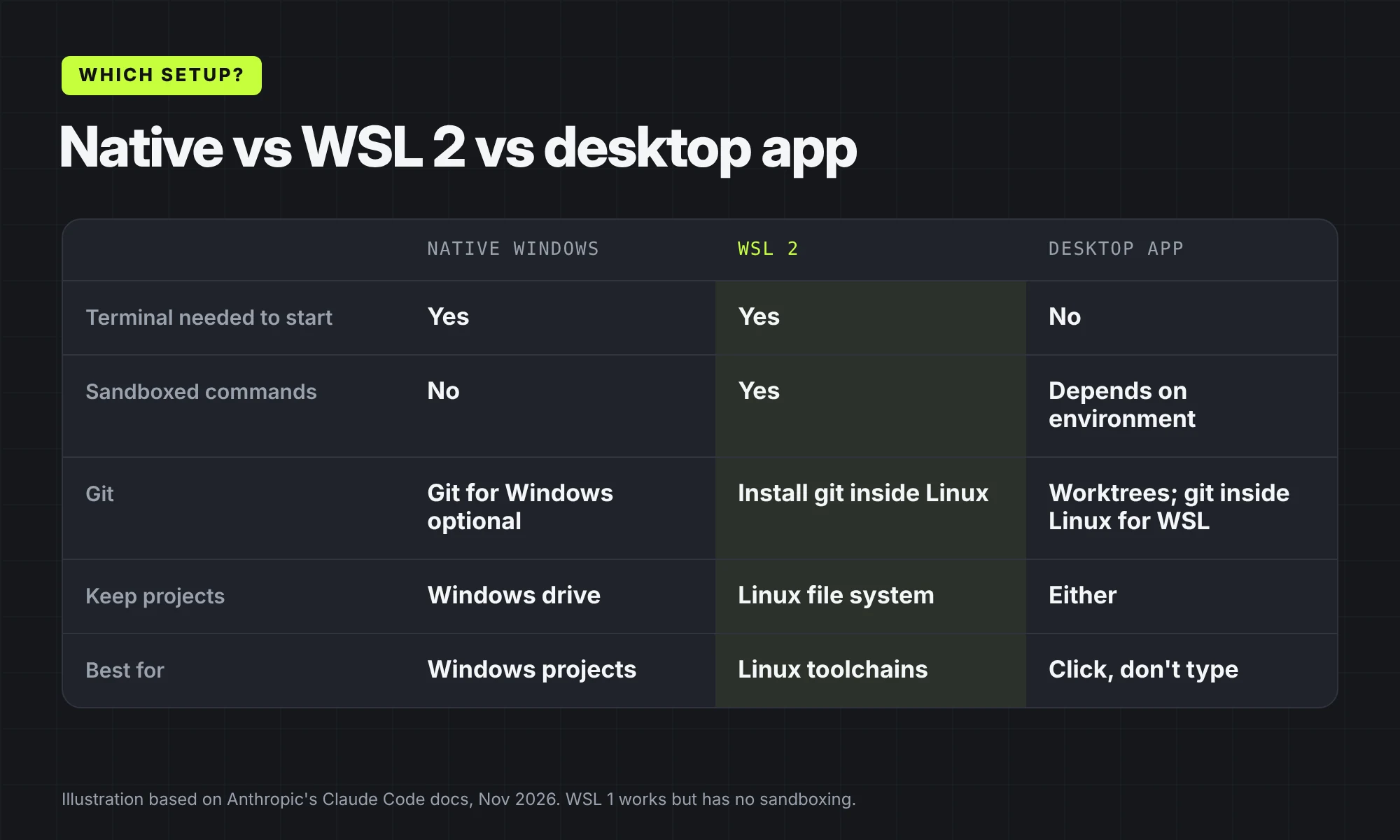
| Native Windows | WSL 2 | Desktop app | |
|---|---|---|---|
| You need | Nothing extra | WSL 2 and a Linux distribution | The Claude desktop app |
| Sandboxed commands | Not supported | Supported | Depends on the environment you pick |
| Git | Git for Windows is optional | Install git inside Linux, not Git for Windows | Only for worktree sessions, plus git inside Linux for WSL sessions |
| Keep your project | On the Windows drive | In the Linux file system | Either, depending on the environment |
| Terminal needed to start | Yes | Yes | No |
Pick native Windows if your projects and tools live on Windows. Pick WSL 2 if you build for Linux or want sandboxed command execution. Pick the desktop app if you’d rather click than type commands.
WSL 1 also works, but it doesn’t support sandboxing, so only use it if WSL 2 isn’t available on your machine.
How to Install Claude Code on Windows (PowerShell or CMD)
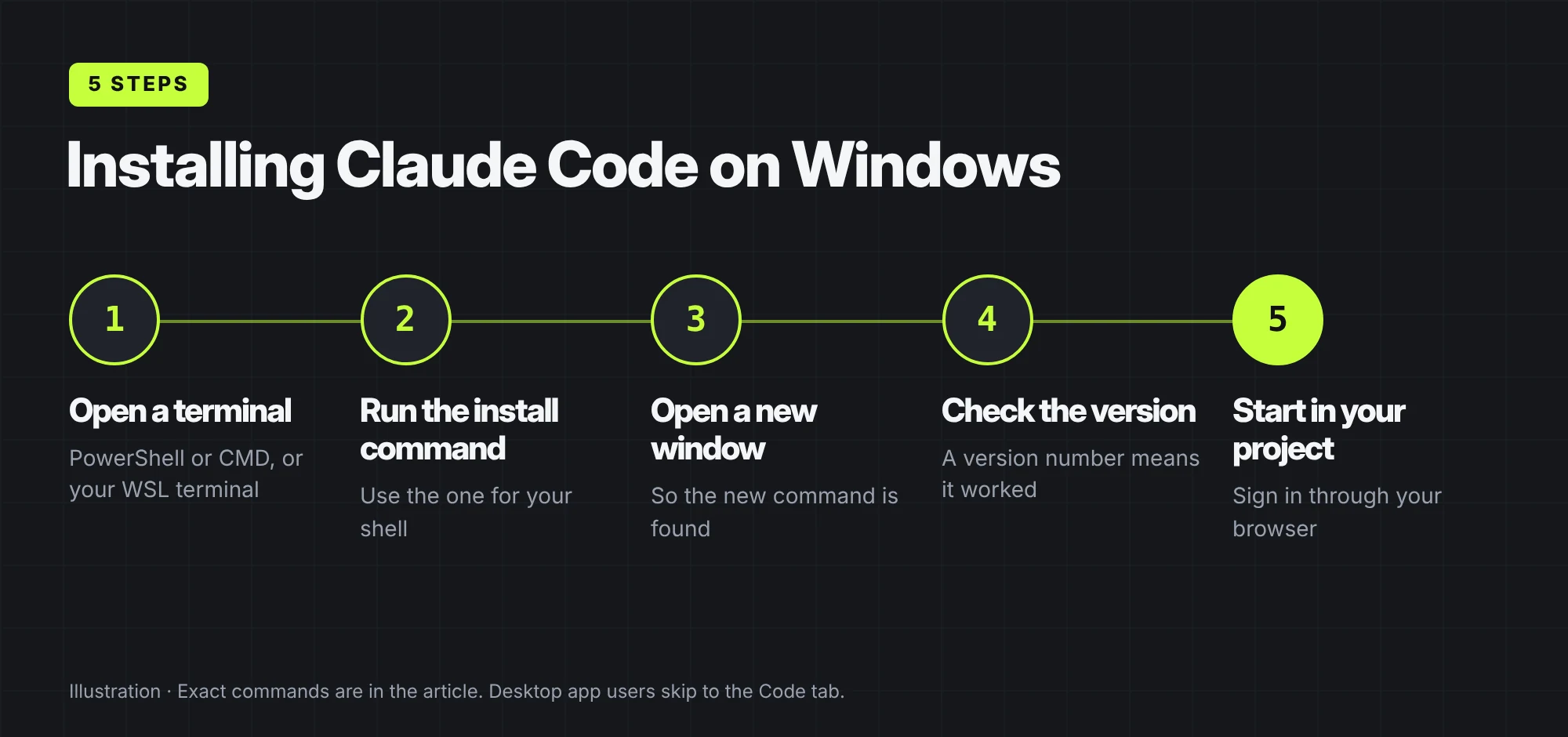
Check which shell you’re in
Search for “PowerShell” or “Command Prompt” in the Start menu. In PowerShell, your prompt starts with PS, like PS C:\Users\YourName>. In Command Prompt (CMD), it’s just C:\Users\YourName>. Each shell needs its own command.
Install with PowerShell
irm https://claude.ai/install.ps1 | iex
The installer doesn’t show progress while it downloads, so give it a moment. When it finishes, close the window and open a new one before you run claude.
Install with Command Prompt (CMD)
curl -fsSL https://claude.ai/install.cmd -o install.cmd && install.cmd && del install.cmd
Again, open a new window once it’s done.
Do you need Git for Windows?
No, it’s optional. With Git for Windows installed, Claude Code uses Git Bash for its Bash tool. Without it, Claude Code runs commands through PowerShell instead. Install Git if your projects rely on Bash scripts.
Alternative: install with WinGet
winget install Anthropic.ClaudeCode
WinGet installs don’t update themselves, unlike the native installer, so you’ll need to update them manually (see the update section below).
How to Install Claude Code on Windows Using WSL 2
- Make sure WSL 2 and a Linux distribution such as Ubuntu are installed. Microsoft’s
wsl --installcommand sets this up. - Open your distribution’s terminal from the Start menu.
- Run the Linux installer:
curl -fsSL https://claude.ai/install.sh | bash
- Start Claude Code from that same WSL terminal by typing
claude. Don’t launch it from PowerShell or CMD.
Keep your projects inside the Linux file system, such as /home/yourname/project. Anthropic notes that working on Windows-drive files from inside WSL goes through a network file system, which is slow and breaks file watching.
Inside WSL, you don’t need Git for Windows. Install git with your distribution’s package manager instead.
How to Use Claude Code on Windows Without a Terminal
The Claude desktop app has Claude Code built in, so you don’t need Node.js or the command-line version.
- Download the Claude desktop app for Windows. There’s a standard x64 installer and a separate ARM64 installer.
- Run the installer, open Claude from the Start menu and sign in.
- Click the Code tab at the top of the sidebar. If you see an upgrade prompt, your account needs a paid plan.
- Choose an environment: Local for Windows, or a WSL distribution if you have WSL 2 installed.
- Open your project folder and type a request.
WSL sessions in the app run inside a WSL 2 distribution (WSL 1 isn’t supported), and Anthropic lists Git as a requirement in that distribution. For local Windows sessions, Git is only needed if you turn on worktree isolation.
How to Verify That Claude Code Is Installed Correctly
Verify a native Windows or WSL installation
Open a new terminal and run:
claude --version
A working install prints a version number followed by (Claude Code). For a fuller health check that doesn’t start a session, run claude doctor.
Then move into your project folder and start Claude Code:
cd C:\path\to\your\project
claude
On first launch, Claude Code opens your browser so you can sign in. After that, try a simple prompt like “what does this project do?” and type /help to see the available commands. If you’re not sure which model to use, our guide to choosing a Claude model compares the current options.
Verify Claude Code in the desktop app
Open the Code tab, select Local or WSL, open a project folder and send a short test request. If Claude reads your files and replies, you’re set.
Once everything works, Claude Code skills are a good next step for repeatable tasks.
How to Fix Common Claude Code Installation Errors
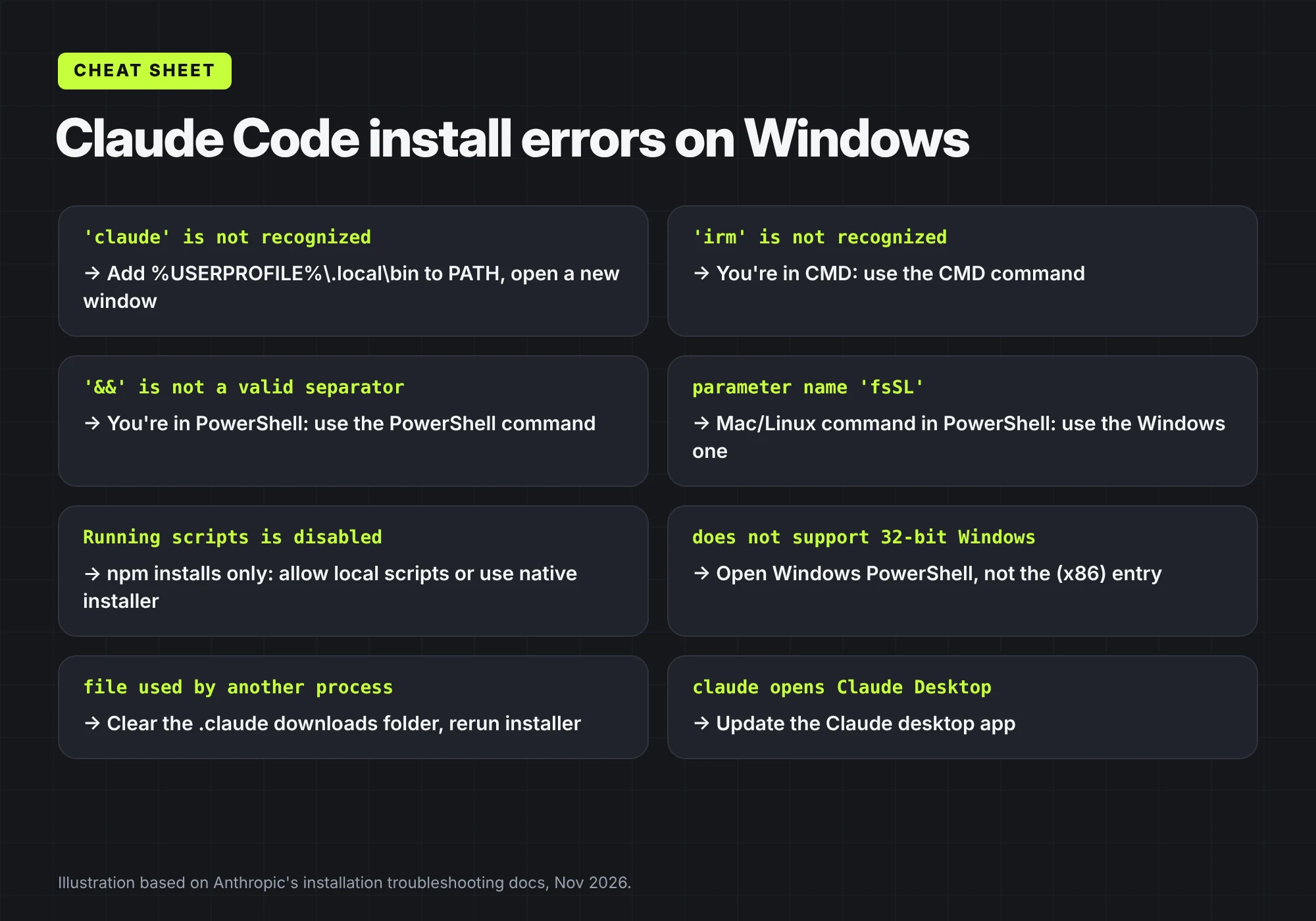
'claude' is not recognized
The install worked, but its folder isn’t on your PATH. Check that the file exists in PowerShell:
Test-Path "$env:USERPROFILE\.local\bin\claude.exe"
If it prints False, the install didn’t finish, so run the install command again rather than editing PATH. If it prints True, add the folder to your user PATH:
$currentPath = [Environment]::GetEnvironmentVariable('PATH', 'User')
[Environment]::SetEnvironmentVariable('PATH', "$currentPath;$env:USERPROFILE\.local\bin", 'User')
Then open a completely new terminal window. If you use a terminal inside VS Code or another editor, restart the editor too, since it keeps the old PATH.
Typing claude opens Claude Desktop instead
An older version of Claude Desktop can register its own Claude.exe that takes priority over the Claude Code command. Update Claude Desktop to the latest version to fix it.
'irm' is not recognized or “&& is not a valid statement separator”
You ran the command for the wrong shell. irm not recognized means you’re in CMD, so use the CMD command or switch to PowerShell. The && error means you’re in PowerShell, so use the PowerShell command.
“A parameter cannot be found that matches parameter name ‘fsSL'”
You ran the Mac/Linux curl ... | bash command in PowerShell, where curl behaves differently. Use the PowerShell command instead.
“Running scripts is disabled on this system”
This only affects npm installs. PowerShell is blocking the .ps1 launcher scripts that npm creates, not the recommended native installer. Either allow local scripts for your user:
Set-ExecutionPolicy -ExecutionPolicy RemoteSigned -Scope CurrentUser
or switch to the native PowerShell installer.
“Claude Code does not support 32-bit Windows”
You probably opened Windows PowerShell (x86), which runs as a 32-bit process even on 64-bit Windows. Open the regular Windows PowerShell entry and run the install command again. Claude Code needs 64-bit Windows.
“The process cannot access the file… because it is being used by another process”
An earlier install attempt or an antivirus scan is still holding the download. Close other installer windows, then clear the folder and retry:
Remove-Item -Recurse -Force "$env:USERPROFILE\.claude\downloads"
irm https://claude.ai/install.ps1 | iex
Claude Code can’t find Git Bash
If Git for Windows is installed somewhere unusual, point Claude Code to it in your settings.json file:
{
  "env": {
    "CLAUDE_CODE_GIT_BASH_PATH": "C:\\Program Files\\Git\\bin\\bash.exe"
  }
}
For any other message, Anthropic’s installation troubleshooting guide matches each error to a fix.
How to Update or Uninstall Claude Code on Windows
Native installs update automatically in the background. To update right away, run claude update. For WinGet, run winget upgrade Anthropic.ClaudeCode.
To uninstall the native command-line version, run these in PowerShell. They don’t remove the Claude desktop app, which you uninstall like any other Windows app:
Remove-Item -Path "$env:USERPROFILE\.local\bin\claude.exe" -Force
Remove-Item -Path "$env:USERPROFILE\.local\share\claude" -Recurse -Force
For WinGet, run winget uninstall Anthropic.ClaudeCode. Either way, your settings stay behind in the .claude folder and the .claude.json file in your user profile. Deleting them removes all settings and session history, so only do it if you want a clean slate.
Installing Claude Code on Mac
Claude Code needs macOS 13.0 or later. Open Terminal and run the native installer, which keeps itself updated:
curl -fsSL https://claude.ai/install.sh | bash
If you use Homebrew, run brew install --cask claude-code for the stable channel, or brew install --cask claude-code@latest for new releases as soon as they ship. Homebrew installs don’t auto-update, so run brew upgrade from time to time.
Check it with claude --version, then run claude in your project folder.
Frequently Asked Questions
Can I use Claude Code for free on Windows?
No. Claude Code isn’t part of the Free plan. You need a Pro, Max, Ultra, Team, or Enterprise plan; a Console account with API credits; or access through a supported cloud provider.
Does Claude Code work on Windows 10?
Yes, on Windows 10 version 1809 or later, with a 64-bit system.
Do I need Node.js to install Claude Code?
No. The native installer and the desktop app don’t need it. Only the optional npm install method does (Node.js 22 or later).
Is Git required for Claude Code on Windows?
No. Git for Windows is optional for native installs; without it, Claude Code uses PowerShell. In WSL, install git inside the Linux distribution instead.
Is Claude Code better on Windows or WSL 2?
Neither is better overall. Native Windows suits Windows projects, while WSL 2 suits Linux toolchains and is the only Windows option that supports sandboxing.
Can I use Claude Code without a terminal?
Yes. Use the Code tab in the Claude desktop app with a paid plan.
How do I add Claude Code to PATH?
Add %USERPROFILE%\.local\bin to your user PATH, then open a new terminal. The PowerShell commands are in the troubleshooting section above.
Does Claude Code support Windows ARM64?
Yes. Anthropic lists ARM64 processors as supported, and the desktop app has a separate ARM64 installer.
How we checked: the commands, requirements, and fixes above come from Anthropic’s Claude Code documentation (Advanced setup, Quickstart, Troubleshoot installation, Desktop quickstart, and Desktop in WSL), Claude’s pricing page, and the Claude Help Center, reviewed on November 11, 2026. We didn’t run our own installation tests.
Keep Exploring