Ahsan Javaid
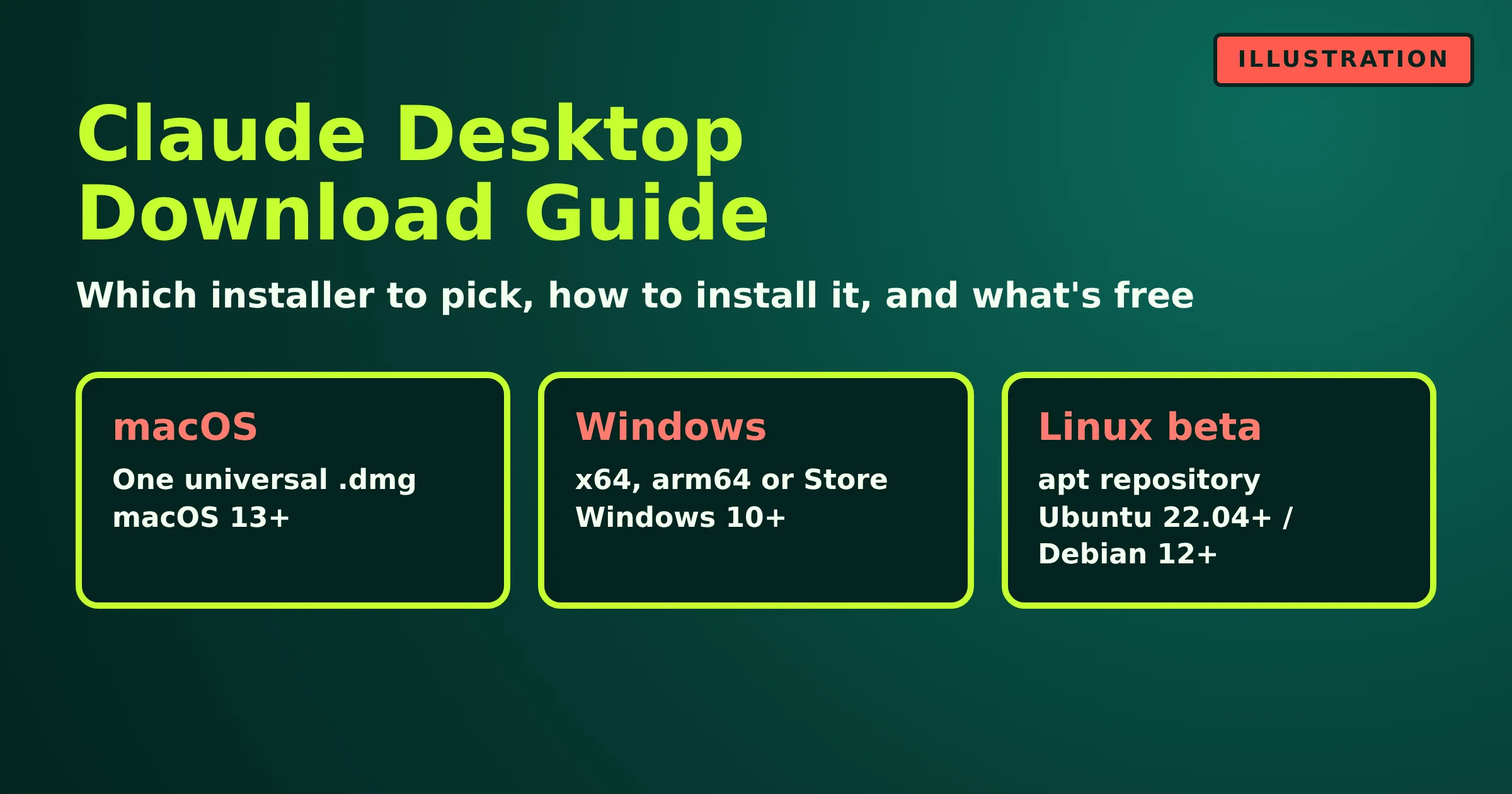
The official Claude desktop download is on Anthropic’s official download page, which offers installers for macOS and Windows, links to the Microsoft Store listing, and points Linux users to setup instructions. The app is free to download and works on every Claude plan, including Free. You need macOS 13 (Ventura) or later, Windows 10 or later, or, for the Linux beta, Ubuntu 22.04 or Debian 12 and newer.
This guide shows which installer to pick, how to install Claude Desktop on each system, what’s free and what needs a paid plan, how to add desktop extensions and MCP servers, and how to fix the install errors Anthropic documents.
| macOS | Windows | Linux (beta) | |
|---|---|---|---|
| Where to get it | Download page (one universal .dmg) | Download page (x64 or arm64 installer) or Microsoft Store | Anthropic’s apt repository (recommended) or a .deb file |
| Minimum version | macOS 13 Ventura | Windows 10 | Ubuntu 22.04 or Debian 12, x64 or arm64 |
| Updates | Automatic | Automatic | Through apt |
Which Claude Desktop Download Do You Need?
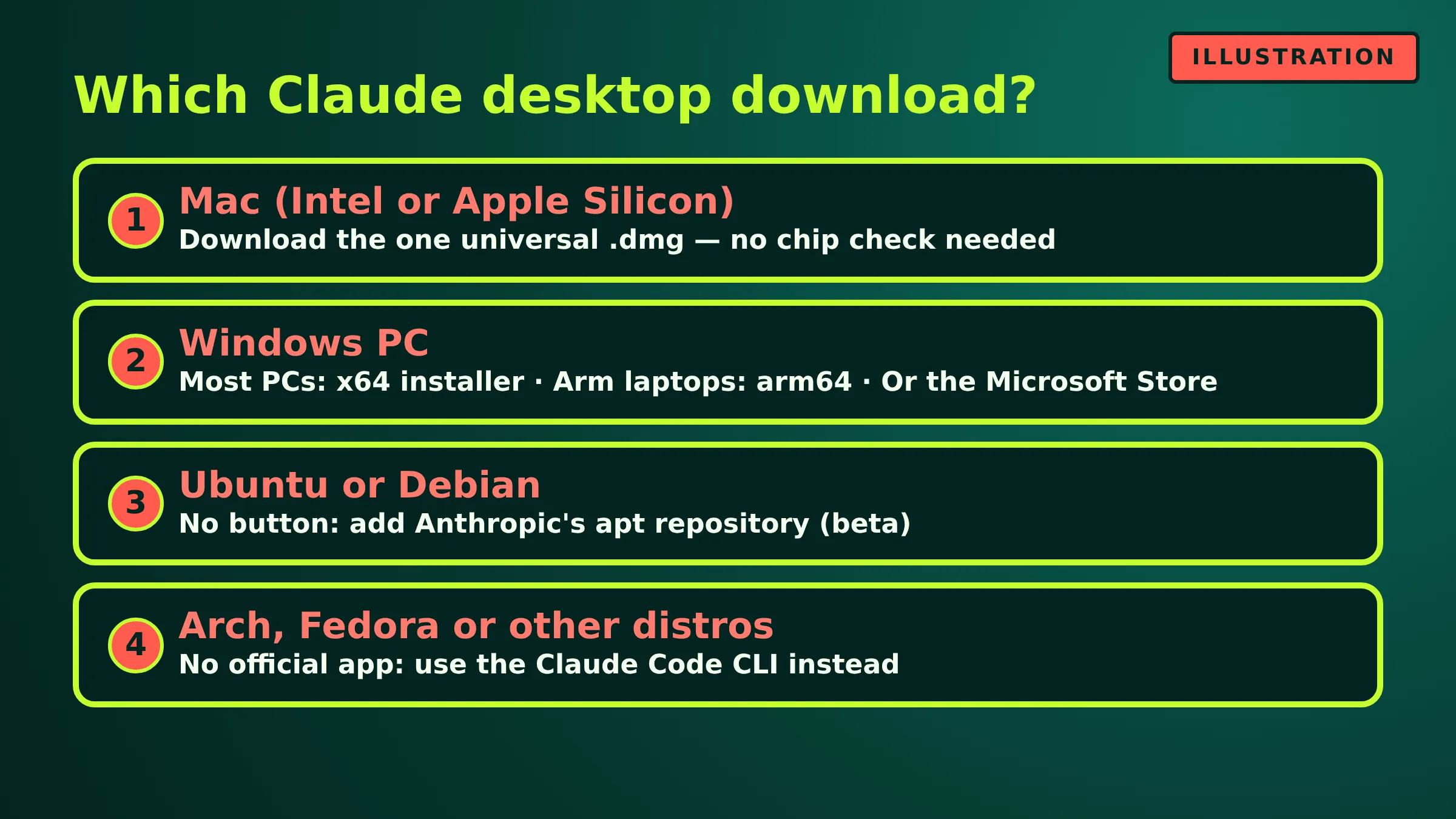
Mac: There’s one universal build. Anthropic says it runs on both Intel and Apple Silicon Macs, so you don’t need to check your chip.
Windows: Choose “Windows” for most PCs, which use x64 processors. Choose “Windows (arm64)” only if your laptop has an Arm processor. To check, open Settings > System > About and look at “System type.” You can also install Claude from the Microsoft Store listing linked on the download page. One small difference matters to developers: Anthropic’s Claude Code docs say the Store version doesn’t use the Windows OpenSSH client for SSH sessions, which limits some SSH settings, so developers who rely on their SSH config should use the regular installer.
Linux: There’s no download button. The download page links to Anthropic’s Linux instructions instead, covered below.
Skip unofficial download sites. Getting the app from Anthropic’s download page, or the Microsoft Store listing it links to, means you get Anthropic’s own build, which keeps itself up to date. Companies that roll Claude out to many computers can use separate enterprise packages: PKG files for macOS and MSIX packages for Windows.
How to Install Claude Desktop
On a Mac
- Download the macOS installer (.dmg) from the download page.
- Open the file and drag Claude into your Applications folder.
- Launch Claude from Applications.
- Sign in with your Claude account.
Anthropic’s macOS deployment guide says the app updates automatically when new versions come out, unless an organization has turned that off.
On Windows
- Download the Windows installer that matches your processor.
- Run the setup file and approve the administrator prompt.
- Launch Claude from the Start menu.
- Sign in with your Claude account.
The administrator prompt matters. If you decline it, Setup shows “Administrator access is required to install Claude with full features” and closes. Anthropic’s Windows deployment guide also says Cowork needs an admin install and the Windows Virtual Machine Platform feature, so a PC without admin rights can’t run Cowork in the desktop app. According to the same guide, the app checks for updates about every four hours, and you can check manually under Help > Check for Updates.
The desktop app isn’t the same thing as the Claude Code command-line tool. If you want to run Claude Code in a terminal instead, follow our Claude Code installation guide for Windows.
On Linux (Beta)
Claude Desktop for Linux is in beta. It officially supports Ubuntu 22.04 or later and Debian 12 or later, on x64 (x86_64) or arm64. Other Debian-based distributions may work but aren’t tested. Anthropic’s docs point Fedora and Arch users to the Claude Code CLI instead, and WSL 2 users should install the Windows app.
The recommended method adds Anthropic’s apt repository, so the app updates with the rest of your system:
sudo curl -fsSLo /usr/share/keyrings/claude-desktop-archive-keyring.asc https://downloads.claude.ai/claude-desktop/key.asc
echo "deb [arch=amd64,arm64 signed-by=/usr/share/keyrings/claude-desktop-archive-keyring.asc] https://downloads.claude.ai/claude-desktop/apt/stable stable main" | sudo tee /etc/apt/sources.list.d/claude-desktop.list
sudo apt update && sudo apt install claude-desktop
If curl or gnupg is missing, install them first with sudo apt install curl gnupg. The docs also show how to verify the signing key and how to install a downloaded .deb file instead.
Launch Claude from your applications menu or by running claude-desktop, then sign in with your Claude account or your organization’s single sign-on. The desktop app doesn’t accept a Claude Console API key; that requires the CLI. On Linux the app doesn’t update itself, so run sudo apt update && sudo apt upgrade. To remove it, run sudo apt remove claude-desktop.
Some features aren’t in the Linux beta yet. Computer use and dictation aren’t available, and the Quick Entry hotkey works on X11 but needs your desktop’s GlobalShortcuts portal on Wayland. Cowork does work, but it runs inside a virtual machine, so it needs hardware virtualization (KVM) turned on, your user added to the kvm group, QEMU packages (apt installs them for you), about 25 GB of free disk space and at least 8 GB of RAM. The full Claude Desktop on Linux documentation covers troubleshooting.

Is Claude Desktop Free?
Yes. Downloading and using the app costs nothing, and Anthropic’s download page says the apps are available on every plan: Free, Pro, Max, Ultra, Team and Enterprise. What changes with a paid plan is which tabs you can use.
| Desktop feature | Free plan | Paid plans |
|---|---|---|
| Chat | Yes | Yes |
| Claude Code tab | No | Pro, Max, Ultra, Team, Enterprise |
| Cowork | No | Pro, Max, Ultra, Team, Enterprise |
Desktop extensions are part of the app itself, and on Team and Enterprise plans, owners can control which ones people may install. Computer use, where Claude operates apps on your screen, is a research preview on macOS and Windows for Pro and Max plans only; it isn’t available on Team or Enterprise, and on a Mac it requires macOS 14 or later. Anything you do in the desktop app counts toward the same usage limits as your plan on the web. For prices and limits by tier, see our breakdown of Claude’s plans and pricing.
Claude Desktop vs. Claude in Your Browser
You use the same account in both places. When you’re signed in, your conversations, projects, memory and preferences sync across desktop, web and mobile. The one exception is Cowork: local Cowork sessions stay on the computer where they run.
The desktop app adds things the browser can’t do:
- Quick access: Claude sits in your dock or taskbar, and Quick Entry opens it from anywhere on your system with a hotkey.
- Desktop extensions: Local MCP servers that connect Claude to files, browsers and native apps on your computer.
- Claude Code without a terminal: The Code tab includes Claude Code, so you don’t need Node.js or the CLI. You open a project folder, choose a model and review Claude’s changes as diffs.
- Cowork with local files: In the desktop app, Cowork can read and write files in folders you connect. Our guide to what Claude Cowork is and how it works explains it in more detail.
- Claude in Chrome: The Chrome extension is included as a connector, so once you turn it on, Claude can navigate, click and fill forms in your browser from the desktop app.
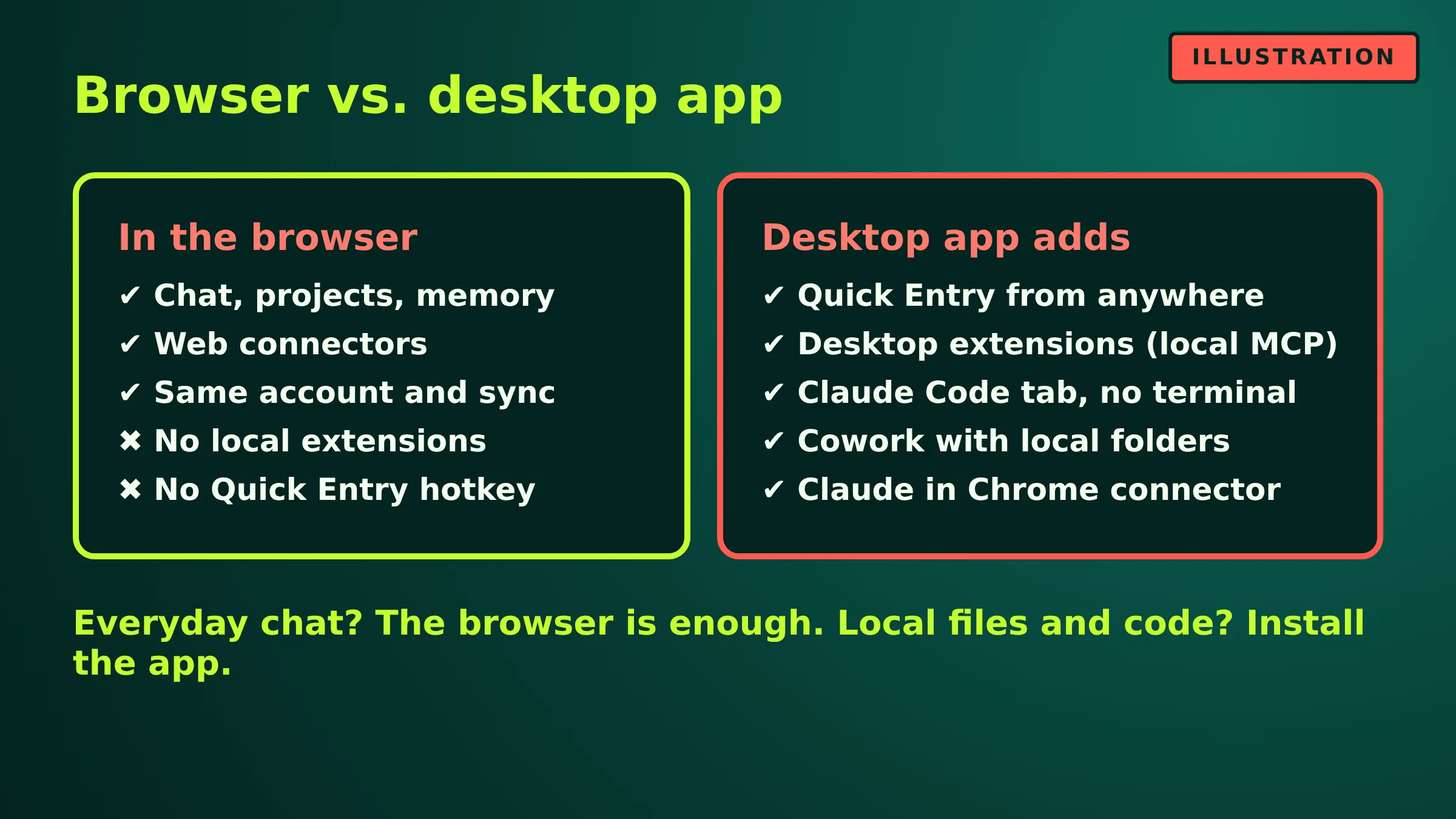
Do you need the desktop app? Not for everyday chat, since claude.ai does the same job in a browser. Install it if you want Claude to work with local files and apps, use Claude Code without a terminal, or let Cowork work with files on your computer.
How to Add MCP Servers and Desktop Extensions
Claude Desktop connects to local tools through the Model Context Protocol (MCP). There are two ways to add a local MCP server.
One-Click Desktop Extensions
- Open Settings > Desktop app and select “Manage” next to Extensions. In the older Settings layout, it’s Settings > Extensions.
- Click “Browse extensions,” pick one and click “Install.”
- Fill in any settings it asks for, such as an API key. Claude Desktop stores fields marked as sensitive in your operating system’s secure storage.
Developers can install a custom extension (.mcpb file) from the same screen under Advanced settings > Install Extension. Claude Desktop includes its own Node.js, so extensions don’t need a separate Node.js install. If macOS shows a security warning, check Privacy & Security in System Settings (System Preferences on older versions).
Manual Setup With claude_desktop_config.json
For an MCP server that isn’t packaged as an extension, edit the config file. Open Claude’s Settings (on a Mac, from the Claude menu in the menu bar), go to the Developer tab and click “Edit Config.” That creates the file if it doesn’t exist yet.
| System | Config file | Logs folder |
|---|---|---|
| macOS | ~/Library/Application Support/Claude/claude_desktop_config.json | ~/Library/Logs/Claude |
| Windows | %APPDATA%\Claude\claude_desktop_config.json | %APPDATA%\Claude\logs |
| Linux | ~/.config/Claude/claude_desktop_config.json | ~/.config/Claude/logs |
Add your server under mcpServers. The MCP project’s own example connects the filesystem server to two folders:
{
  "mcpServers": {
    "filesystem": {
      "command": "npx",
      "args": ["-y", "@modelcontextprotocol/server-filesystem", "/Users/username/Desktop", "/Users/username/Downloads"]
    }
  }
}
Use absolute paths, quit Claude Desktop completely and reopen it. The server then appears under “Add files, connectors, and more” > Connectors > Manage connectors. Servers launched with npx, like this one, need Node.js installed on your computer. A local server runs with your user account’s permissions, so only give it folders you’re comfortable letting Claude read and change.
Web-based connectors are different: the download page says connectors such as Google Drive and Slack work wherever you use Claude, on web, desktop or mobile. Desktop extensions are what reach the files and apps on your own machine.
Common Install Problems and Fixes
- “Administrator access is required to install Claude with full features” (Windows): Run Setup again and approve the admin prompt. On a work PC without admin rights, ask your IT team.
- Error 0x80073CF6 (Windows): An earlier install left a partial registration. Restart, then run the current installer as administrator. If it keeps failing, contact Anthropic support with the ClaudeSetup.log file. Be aware that the installer’s automatic repair can delete the app’s local data, including settings, your saved sign-in and files saved only inside Cowork. Your chat history isn’t affected.
- Cowork says virtualization isn’t available: Turn on virtualization in your BIOS/UEFI settings. On Windows, Cowork also needs the Virtual Machine Platform feature, and virtual machines without nested virtualization can’t run it. On Linux, add yourself to the kvm group and log out and back in.
- Linux keeps signing you out: Staying signed in needs a keyring service such as GNOME Keyring or KDE Wallet.
- The Code tab asks you to upgrade: Claude Code needs a paid plan, as shown in the plan table above.
- An MCP server doesn’t show up: Check the logs folder listed in the table above and make sure the config file uses absolute paths.
On Windows, Help > Troubleshooting > Show Logs opens the app’s logs if you need to send them to support.
Frequently Asked Questions
Is there a Claude desktop app for Arch Linux?
No official one. Anthropic’s Linux beta supports only Debian-based systems, mainly Ubuntu and Debian, and its docs point Arch and Fedora users to the Claude Code CLI. Community packages exist, but Anthropic doesn’t make or support them.
Can I install Claude Desktop on more than one computer?
Anthropic doesn’t list a device limit for the desktop app. When you sign in with the same account, your conversations, projects, memory and preferences sync across devices. Local Cowork sessions stay on the computer where they run.
Is Claude Desktop better than the Claude Code CLI?
They suit different work. The desktop app gives you Claude Code with a visual interface, diffs and no terminal setup. The CLI is the choice for scripting and automation: non-interactive mode (--print), the Agent SDK and agent teams are CLI-only. The desktop app also doesn’t accept a Claude Console API key, so if you pay through the API rather than a subscription, use the CLI.
How do I reinstall Claude Desktop?
Download the latest installer from Anthropic’s download page and run it. On Linux, reinstall the claude-desktop package with apt. On Windows, read the 0x80073CF6 note above first: the installer’s repair step can remove local app data, though your chat history stays safe.
How we checked: Steps, requirements and plan details come from Anthropic’s download page, Help Center and Claude Code documentation, plus the Model Context Protocol docs, reviewed November 23, 2026. Beta features change often.
Keep Exploring