Ahsan Javaid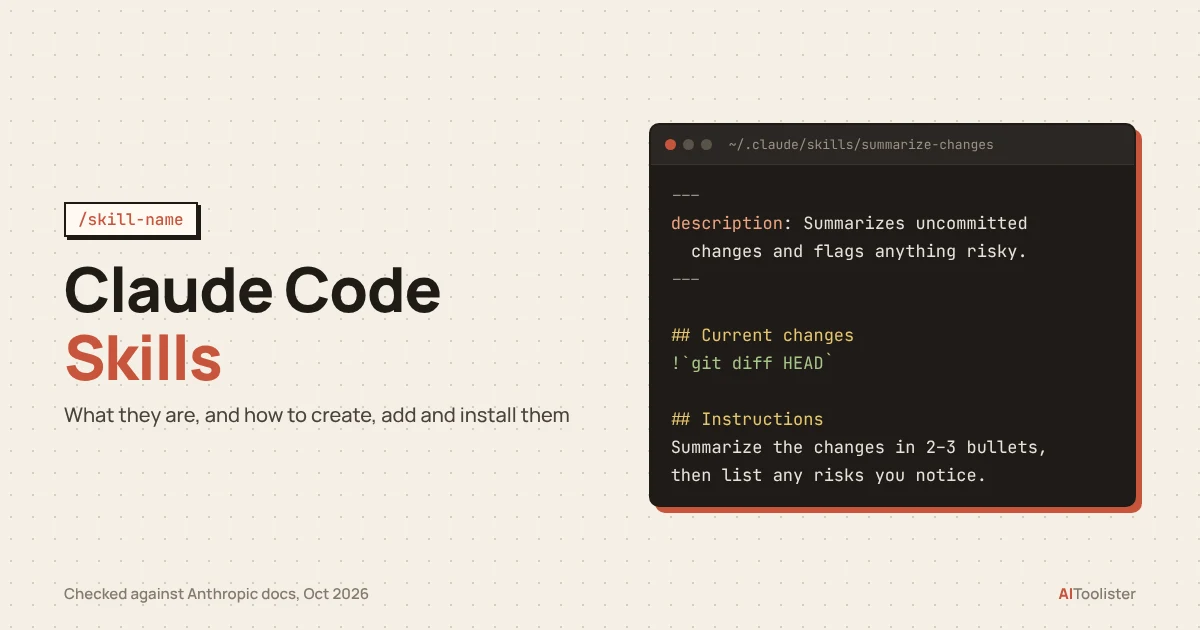
Claude Code skills are reusable folders of instructions that help Claude follow a consistent workflow for a particular task. Each skill is a folder with a SKILL.md file inside it. Claude can load the skill when your request matches its description, or you can invoke it directly by typing /skill-name.
This guide covers skills in Claude Code, the coding tool that runs in your terminal, IDE, and desktop app. It explains how skills work, shows you how to write your first one in a few minutes, and then covers how to install ready-made skills from Anthropic’s official marketplace and how to fix a skill that won’t trigger. Technical details were checked against Anthropic’s official documentation on 21 October 2026.
What Are Claude Code Skills?
Anthropic describes skills as “folders of instructions, scripts, and resources that Claude loads dynamically to improve performance on specialized tasks.” In practice, a skill is a reusable procedure. Examples include a checklist for reviewing pull requests, the steps for deploying your app, and your team’s rules for writing commit messages.
Without a skill, you’d paste those instructions into the chat every time. With one, you write them once, and Claude can load them when the task comes up. Skills are instructions, not guaranteed automation, so test a skill before you rely on it for important work.
Claude skills vs Claude Code skills
Skills aren’t limited to Claude Code. According to Anthropic’s help center, the same feature also exists in other places:
- Claude apps (web, desktop, mobile): available on Free, Pro, Max, Team, and Enterprise plans, with code execution turned on.
- Claude API: available in beta through the code execution tool.
- Claude Code: skills live as folders on your machine or in your repository. This article focuses on this version.
These products share the Agent Skills format, which Anthropic has published as an open standard at agentskills.io. Supported features and execution environments still differ. Basic instructions are portable, but Claude Code-specific features, such as shell commands, invocation controls, and subagent settings, may need changes before a skill works elsewhere.
You may already be using skills.
Claude Code ships with bundled skills that are available in most sessions with nothing to install. They include /code-review, /debug, /batch, /loop, /verify, /run, and /claude-api. Type / in a session to see them in the menu. If you’d rather not have them, the disableBundledSkills setting turns them off.
How Skills Work in Claude Code
A Claude Code skill can run in two ways:
- Automatically. Claude reads each skill’s description and can load the skill when your request matches it. If you ask “what did I change?”, for example, a skill described as summarizing uncommitted changes gets used.
- Manually. You type /skill-name, optionally followed by arguments, such as /fix-issue 123.
Skills don’t take up much room in Claude’s working memory (its context window). At the start of a session, Claude Code loads only a short listing of each skill’s name and description. Claude loads the main SKILL.md instructions when the skill is used, and reads any additional reference files only when it needs them. That’s why you can install many skills without loading every skill’s full instructions into every conversation. The descriptions themselves still take up some space, which matters once you have a lot of skills.
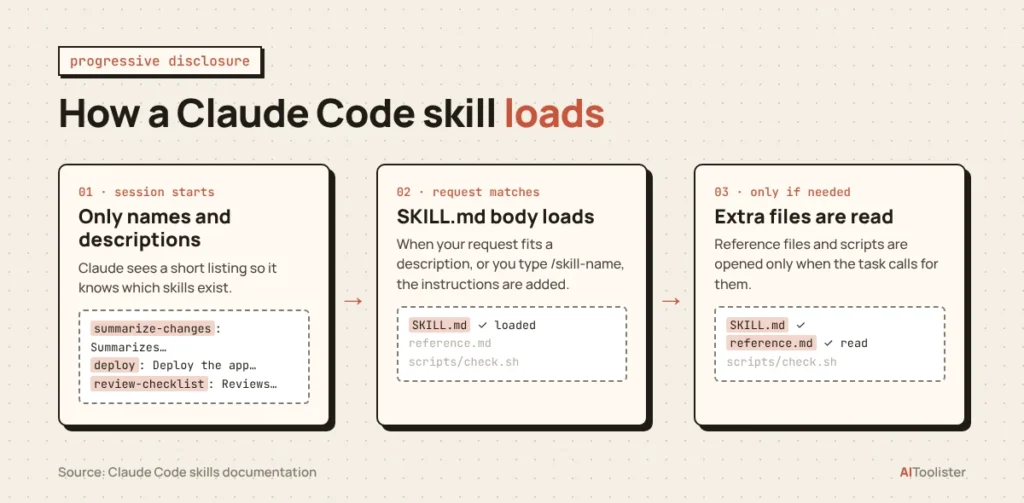
Claude Code also watches your skill folders, so when you add, edit, or delete a skill, the change takes effect in the current session without a restart. The exception is a top-level skills folder that didn’t exist when the session started. Run /reload-skills to pick it up. Claude Code doesn’t watch that new folder during the session, so run /reload-skills again after each later change there.
Where Claude Code skills live
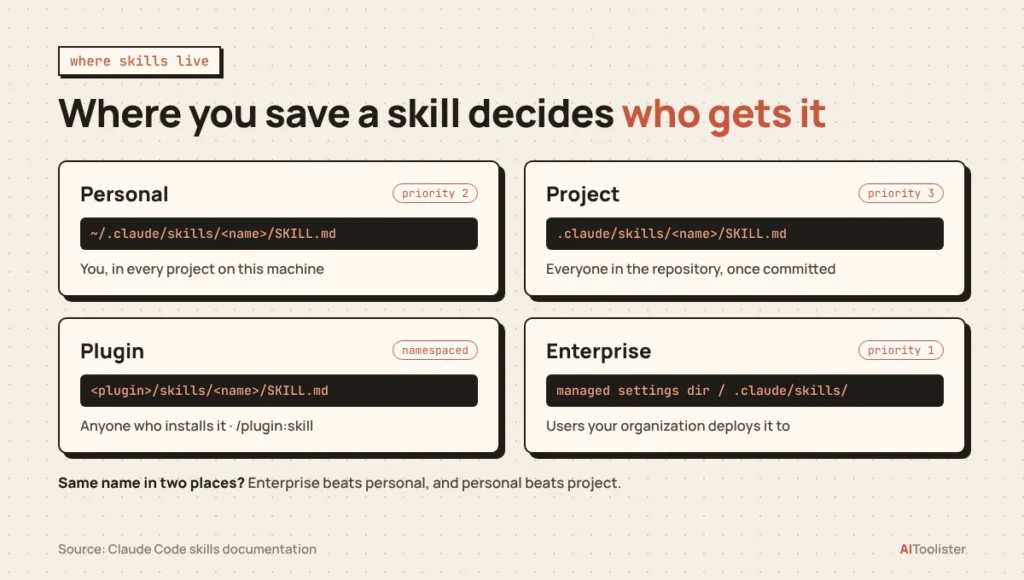
Where you save a skill decides who gets it.
| Location | Path | Who gets it |
| Personal | ~/.claude/skills/<skill-name>/SKILL.md | You, in every project on this machine |
| Project | .claude/skills/<skill-name>/SKILL.md | Everyone working in this repository, once committed |
| Plugin | <plugin>/skills/<skill-name>/SKILL.md | Anyone who installs the plugin, run as /plugin-name:skill-name |
| Enterprise | .claude/skills/ in your organization’s managed settings directory | All users your organization deploys it to |
If two skills share a name, enterprise beats personal, and personal beats project. Plugin skills never clash with the others because they carry the plugin’s name as a prefix.
If you created custom slash commands before skills existed, they still work. A file at .claude/commands/deploy.md and a skill at .claude/skills/deploy/SKILL.md both create /deploy. Anthropic now recommends skills for new work because they support extra files and more settings.
Skills vs CLAUDE.md, Plugins, Subagents and MCP
Claude Code has several ways to customize Claude, and they’re easy to mix up. Here’s what each one is for.
| Feature | What it is | When it loads | Use it for |
| CLAUDE.md | A memory file of project instructions | At the start of every session | Rules that should always apply, such as coding style or test commands |
| Skill | A folder with SKILL.md and optional files | Only when relevant or invoked | Repeatable procedures, checklists and workflows |
| Subagent | A separate Claude helper with its own context | When Claude delegates a task to it | Side tasks that would clutter the main conversation |
| MCP server | A connection to an outside tool or data source | When its tools are used | Reaching services such as an issue tracker or database |
| Plugin | A package of skills, agents, hooks and MCP servers | When installed and enabled | Sharing a whole setup with a team or the public |
The quick rule: put things Claude must always know in CLAUDE.md, and procedures Claude needs sometimes in a skill. Use MCP to connect a service, and a plugin to bundle and distribute all of it.
How to Create a Custom Skill for Claude Code
The steps below build a skill that summarizes your uncommitted Git changes and flags anything risky. It’s based on the example in Anthropic’s documentation.
Before you start: Claude Code must be installed and signed in. The example assumes a Git repository with at least one commit, and the commands use a macOS or Linux shell (on Windows, create the folders in File Explorer or your usual shell instead).
Step 1: Create the skill folder
Decide who should have the skill. For yourself only, create it in your home directory:
mkdir -p ~/.claude/skills/summarize-changes
To share it with your team through the repository, use .claude/skills/summarize-changes inside the project instead.
The folder name becomes the command name, so this skill runs as /summarize-changes.
Step 2: Write the SKILL.md file
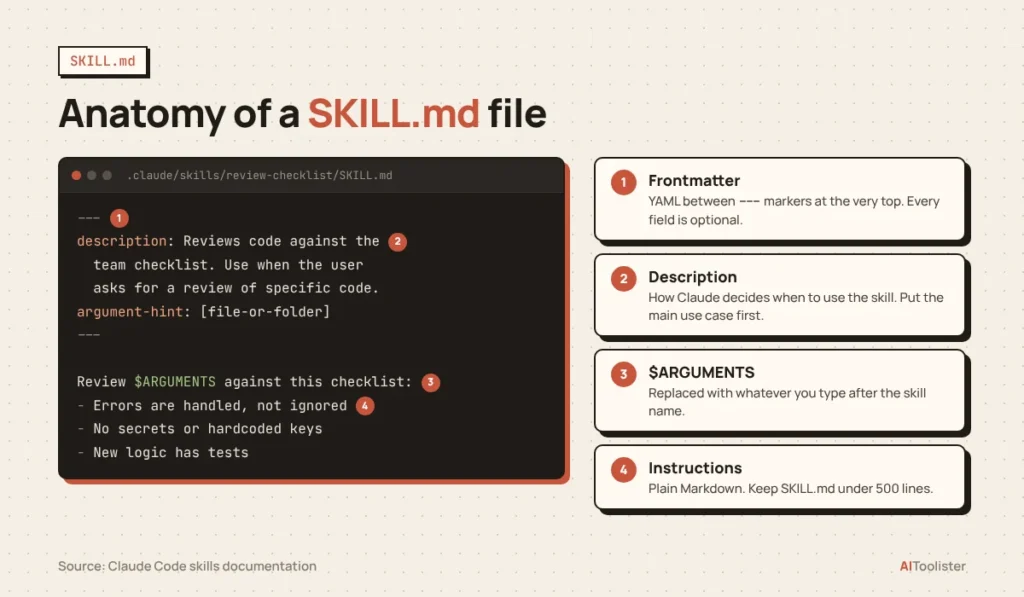
Create SKILL.md inside that folder. The file has two parts: YAML frontmatter between — markers at the very top, and the instructions underneath.
---description: Summarizes uncommitted changes and flags anything risky. Use when the user asks what changed, wants a commit message, or asks to review their diff.---## Current changes!` git diff HEAD.`## InstructionsSummarize the changes above in two or three bullet points, then list any risks you notice such as missing error handling, hardcoded values, or tests that need updating. If the diff is empty, say there are no uncommitted changes.
The !` git diff HEAD` line runs the command before Claude reads the skill, so Claude receives your actual diff rather than the command text.
One limitation to know: git diff HEAD shows changes to files Git already tracks. Brand-new files you haven’t added with git add won’t appear, so “no changes” from this skill doesn’t mean your working folder is clean. Run git status to see untracked files.
Step 3: Write a description Claude can match
The description is what Claude uses to decide whether a skill fits your request. Two things make it work:
- Use the words people actually say. “Use when the user asks what changed” matches real requests better than “Git diff analysis utility.”
- Put the main use case first. The description and the optional when_to_use field are cut off at 1,536 characters in the listing Claude sees.
All frontmatter fields are optional. Anthropic recommends always including description; without one, Claude Code uses the first line of the instructions instead.
Step 4: Add supporting files if you need them
A skill folder can hold more than SKILL.md. Detailed reference material, examples, or scripts can sit alongside it:
summarize-changes/├── SKILL.md├── reference.md└── scripts/ └── check.sh
Mention those files in SKILL.md so Claude knows when to open them. Anthropic suggests keeping SKILL.md under 500 lines and moving long material into separate files, which only load when needed.
Step 5: Test the skill
Open Claude Code in a Git repository and try it both ways:
- Ask naturally: “What did I change?” Claude should pick up the skill on its own. If it doesn’t, sharpen the description (see the troubleshooting section below).
- Run it directly: /summarize-changes.
You can also ask “What skills are available?” to confirm Claude Code has found it.
SKILL.md Settings Worth Knowing
You don’t need any settings beyond description for most skills. These are the optional frontmatter fields that solve common problems:
| Field | What it does | When to use it |
| description | Tells Claude what the skill does and when to use it | Always |
| when_to_use | Adds trigger phrases or example requests to the description | When Claude misses requests it should catch |
| disable-model-invocation | Set to true so only you can run the skill with /name | Anything with side effects, such as deploying or sending messages |
| allowed-tools | Lets Claude use listed tools without asking permission while the skill runs | Skills that always run the same safe commands |
| argument-hint | Shows expected arguments in autocomplete, such as [issue-number] | Skills you run with arguments |
| context | Set to fork to run the skill in a separate subagent | Long tasks you don’t want filling the main conversation |
| paths | Limits automatic use to matching files, such as src/api/** | Skills that only apply to one part of a codebase |
Passing arguments to a skill
Whatever you type after the skill name is available inside SKILL.md as $ARGUMENTS. Running /fix-issue 123 replaces $ARGUMENTS with 123. For several arguments, $0, $1, and so on, pick them out by position, starting from zero. You can also name them with the arguments field.
The full list of fields, including model, effort, and hooks, is in Anthropic’s Claude Code skills documentation.
How to Add and Install Skills in Claude Code
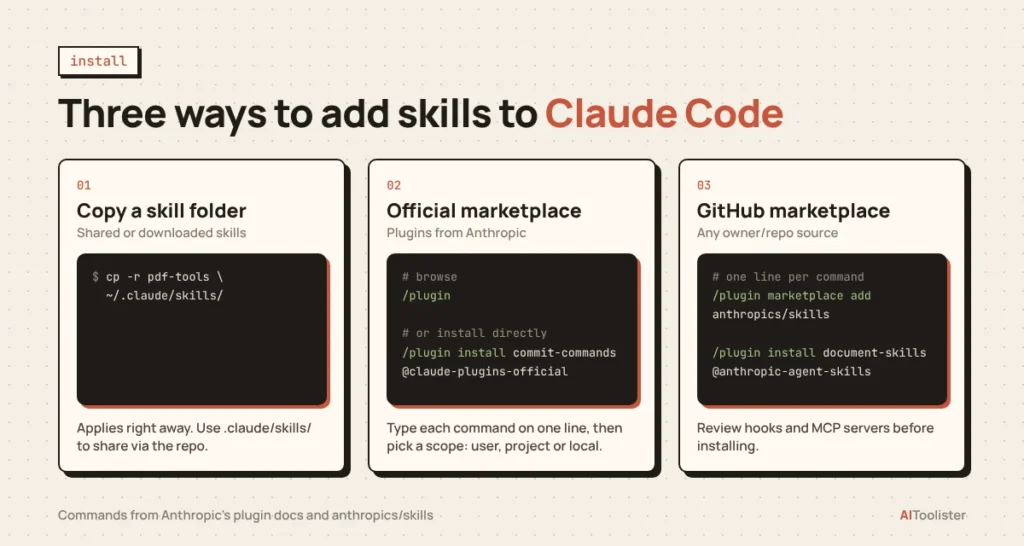
There are three ways to get skills into Claude Code, depending on where the skill comes from.
Option 1: Add a skill folder manually
If someone shares a skill folder with you, or you download one, copy the whole folder into a skills directory:
- ~/.claude/skills/ to use it in all your projects.
- .claude/skills/ in a repository to use it there, and commit it so teammates get it too.
Make sure SKILL.md sits directly inside the skill’s own folder, for example ~/.claude/skills/pdf-tools/SKILL.md.
Option 2: Install a plugin from Anthropic’s official marketplace
Many ready-made skills are distributed inside plugins. Anthropic’s official marketplace, claude-plugins-official, is added for you the first time you start an interactive Claude Code session in the terminal.
- In a Claude Code session, run /plugin. The Discover tab lists available plugins, and you can type to search.
- Or install a known plugin directly, for example /plugin install commit-commands@claude-plugins-official.
- Review the details pane, which shows the skills, agents, hooks, and MCP servers the plugin will add.
- Choose a scope: user (you, in every project), project (everyone in this repository) or local (you, in this repository only).
- If the summary says Run /reload-plugins to apply, the plugin activates after that reload.
Plugin skills appear in the / menu as /plugin-name:skill-name. In the desktop app, use the + button, then Plugins. In VS Code, type /plugins.
Option 3: Add a GitHub repository as a marketplace
To install from a marketplace other than the official one, add it first with its GitHub owner/repo name. For Anthropic’s public skills repository:
/plugin marketplace add anthropics/skills/plugin install document-skills@anthropic-agent-skills
The same repository also offers an example-skills plugin.
Update, disable, or remove skills.
- Manual skills: edit or delete the folder. Changes apply right away.
- Plugins: open the Installed tab in /plugin to enable, disable, update, or uninstall. From your shell, claude plugin uninstall <name>@<marketplace> does the same.
- Marketplaces: removing a marketplace also uninstalls every plugin you installed from it.
Plugins from the official marketplace update automatically. Third-party marketplaces don’t unless you turn auto-update on.
A plugin can run hooks and MCP servers on your machine, not just add instructions. Read the details pane before you install anything from a source you don’t know.
Where to Find Claude Code Skills on GitHub
Two official GitHub repositories are the safest place to start.
anthropics/skills is Anthropic’s public skills repository. It includes:
- Document skills (docx, pdf, pptx, xlsx), the same ones behind Claude’s file-creation features.
- Creative and design, development and technical, and enterprise and communication skills.
- A skill template and the Agent Skills specification.
Licences differ within it. Many skills are open source under Apache 2.0, while the document skills are source-available rather than open source. Anthropic also states that these skills are provided for demonstration and educational purposes and should be tested before you rely on them for critical work.
anthropics/claude-plugins-official is the repository behind the official plugin marketplace, which you can also browse at claude.com/marketplace.
Many community-made skill collections exist on GitHub too. They can be useful, but a skill can include scripts that run on your computer. Before installing an untrusted one, check four things:
- Read SKILL.md for instructions you wouldn’t approve, such as deleting files or sending data elsewhere.
- Open every script in the folder and make sure you understand what it runs.
- Look for hooks and for allowed-tools settings that skip permission prompts.
- Check any bundled MCP servers and what access they request.
Practical Claude Code Skill Examples
The step-by-step guide above already covers a skill that runs automatically. These two show other settings in action. Each one goes in its own folder as SKILL.md.
A deploy skill only you can run.
---description: Deploy the application to productiondisable-model-invocation: true---Deploy $ARGUMENTS to production:1. Ask me to confirm the production target before deploying2. Run the test suite and stop if anything fails3. Build the application4. Push to the deployment target5. Confirm the deployment succeeded
disable-model-invocation: true stops Claude from loading this skill on its own because your code “looks ready.” The skill runs only when you type /deploy. This controls when the skill is invoked, not deployment permissions in general, so keep production credentials, tool permissions, and approval requirements restricted separately.
A code-review checklist with arguments
---description: Reviews a file or folder against the team's review checklist. Use when the user asks for a review of specific code.argument-hint: [file-or-folder]---Review $ARGUMENTS against this checklist:- Functions do one thing and have clear names- Errors are handled, not silently ignored- No secrets, keys, or hardcoded credentials- New logic has testsList each problem with the file and line, then give an overall verdict.
Run it as /review-checklist src/payments, or just ask Claude to review that folder. The argument-hint shows [file-or-folder] in autocomplete as a reminder.
Why a Claude Code Skill Isn’t Working
Most skill problems trace back to the description or the frontmatter. These fixes come from Anthropic’s troubleshooting guide.
| Problem | Likely cause | Fix |
| Claude never uses the skill | The description doesn’t match how you phrase requests | Add the words you’d naturally use, or a when_to_use field |
| Claude uses it when you don’t want it | The description is too broad | Make it more specific, or add disable-model-invocation: true |
| /skill-name works, but automatic use doesn’t | The YAML frontmatter is malformed, so the skill loads without its description | Run Claude Code with –debug to see the error, or run claude plugin validate ~/.claude/skills (Claude Code v2.1.233 or later) |
| Claude follows the skill at first, then drifts | Long conversations get compacted, and only the start of a skill is kept | Invoke the skill again, and put the most important rules at the top of SKILL.md |
| Some descriptions seem ignored | With many skills, Claude Code drops descriptions of your least-used skills to save space | Run /doctor to check, and /skill-doctor (v2.1.252 or later) to find unused skills to turn off |
| A personal skill is missing in Cowork or a cloud session | Those sessions don’t read ~/.claude/skills/ on your machine | Enable the skill for your claude.ai account. For cloud coding sessions, you can also commit it to the repository’s .claude/skills/ folder |
If a rule absolutely must be followed every time, such as running a linter before each edit, Anthropic recommends a hook rather than a skill. Hooks run on every matching event whether or not Claude remembers the instructions.
FAQ
What is the best skill for Claude Code?
There’s no single best skill; the most useful one is the one that automates something you repeat often. A good starting point is the bundled skills such as /code-review and /debug, then Anthropic’s document skills if you work with Word, PDF, PowerPoint, or Excel files. After that, write your own skill for your most repeated task.
Should I use Claude Code skills?
Yes, if you find yourself giving Claude the same instructions more than once. A skill saves you retyping them and keeps results consistent across sessions and teammates. For a one-off task, a normal prompt is enough. For rules that should apply to every session, CLAUDE.md is the better fit.
Are Claude Code skills free?
Anthropic doesn’t list a separate charge for skills. They’re a built-in feature of Claude Code, and in the Claude apps they’re available on every plan, including Free. When a skill is used, its instructions are added to the conversation, so it counts toward your normal Claude usage like any other text.
Do skills use up tokens or context?
Very little until they’re needed. At the start of a session, Claude Code loads only each skill’s name and description. The full SKILL.md and its supporting files load only when the skill is used.
What’s the difference between a skill and a plugin?
A skill is a single set of instructions in a folder. A plugin is a package that can contain several skills plus subagents, hooks, and MCP servers, and it’s installed through a marketplace. Plugins are how skills are usually shared publicly.
Can I use the same skill in Claude.ai and Claude Code?
Often, yes. Both use the Agent Skills format, published as an open standard, so plain instructions usually carry over. Claude Code-specific features, such as !` command` shell injection, invocation settings, or scripts that depend on your local tools, may need changes before the skill works in the Claude apps. In Claude Code, you save the folder in a skills directory or install it through a plugin; in the Claude apps, you add it through the app instead.
Start With One Skill
The fastest way to get value from Claude Code skills is to pick the one task you explain to Claude most often and turn it into a SKILL.md. Keep it in ~/.claude/skills/ while you refine the description. Once it triggers reliably, move it into the repository’s .claude/skills/ so your whole team gets it.
If you’re still deciding which AI assistant fits your work, our ChatGPT vs Claude comparison covers how the two differ.
Keep Exploring