Ahsan Javaid
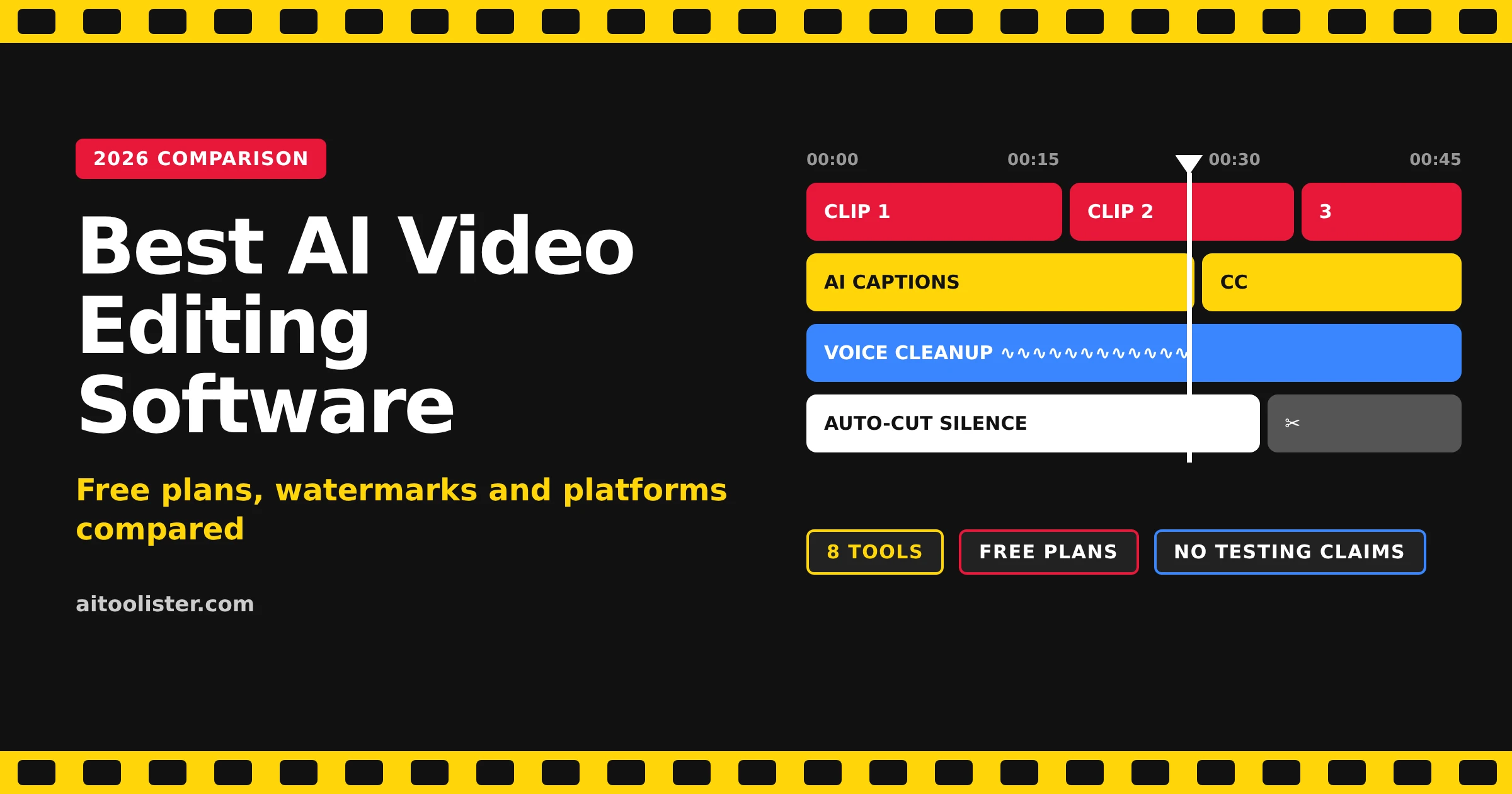
The best AI video editing software depends on what you make and how much you want to pay. For free, watermark-free 1080p exports with AI captions, Clipchamp is the strongest documented option in this comparison. Descript is best for transcript-based editing, OpusClip is best for automatic long-to-short clipping, and DaVinci Resolve is a powerful free editor for advanced editing, although many of its advanced AI tools are in the paid Studio version.
This guide compares eight AI video editing tools on the details that decide whether a free plan is actually usable: watermarks, export resolution, captions, platforms, and paid-plan costs.
How we compared these tools: this is a documentation-based comparison using each tool’s official pricing, feature and help pages, checked October 30, 2026. AIToolister did not test these editors hands-on. Free plans and prices change often, so check each tool’s own page before you decide. Where an official page doesn’t state a detail, the table says “Not documented”; that doesn’t mean the feature is missing.
AI Video Editors Compared: Free Plans, Watermarks and Platforms
The first table covers what you get without paying. Prices are in US dollars and can vary by region.
| Tool | Best for | Platforms | Free plan and main limits | Watermark on free exports | Max free export | Auto-captions on free plan | Paid from |
| Clipchamp | Beginners on Windows or the web | Web, Windows app | Included; core editor and AI tools | No | 1080p | Included (AI subtitles) | Premium via Microsoft 365 Personal or Family; see current pricing |
| Canva | Beginners who already design in Canva | Not documented on the page reviewed | Included; caption translation is Pro | Not documented | Not documented | Included | Not documented |
| CapCut | Free editing with high-resolution export | Desktop, mobile, web | Included; many AI tools are Pro | Not documented | Up to 8K (per CapCut) | Paid-only (per CapCut, Sep 2026) | $19.99/month or $179.99/year (varies by region) |
| OpusClip | Turning long videos into shorts | Web | Limited: 60 credits a month; clips expire after 3 days and can’t be edited | Yes | 1080p | Included (AI captions) | $15/month (Starter, monthly only) |
| VEED | Browser editing and subtitles | Web | Limited: 50 AI credits, 10 subtitle minutes a month | Yes | Not documented | Limited (10 minutes a month) | $12.25/month billed yearly, or $25 monthly |
| Riverside | Recording talking-head videos and podcasts | Web, Mac, iOS, Android | Limited: 2 hours of multi-track recording; unlimited single-track | Yes | 720p | Not listed on the free plan | See current pricing |
| Descript | Editing video by editing the transcript | Not documented on the pricing page | Limited: 1 hour of transcription a month | 1 watermark-free export a month | 720p | Not documented | $12/month billed yearly, or $15 monthly |
| DaVinci Resolve | Advanced editing for free | Mac, Windows, Linux | Included; full free editor up to Ultra HD | Not documented | Ultra HD 3840×2160, up to 60fps | Not documented | Studio: one-time purchase, $236 when checked |
“AI video editor” can mean three different things, so the second table separates them by type.
| Tool | Built-in AI features | Automatic editing | Transcript-based editing |
| Clipchamp | AI subtitles, AI voiceovers, silence removal | No | No |
| Canva | Auto captions; caption translation (Pro) | No | No |
| CapCut | Background removal, noise reduction, motion tracking and auto captions (mostly Pro) | No | No |
| OpusClip | AI captions, auto-reframe | Yes: picks clips from long videos | No |
| VEED | AI subtitles and credit-based AI tools | Not documented | No |
| Riverside | Audio enhancement, filler and silence removal (Pro) | Yes: Magic Clips (included on free) | No |
| Descript | Studio Sound, filler-word removal | No | Yes |
| DaVinci Resolve | Neural Engine tools mostly in Studio | No | Text-based editing (Studio) |
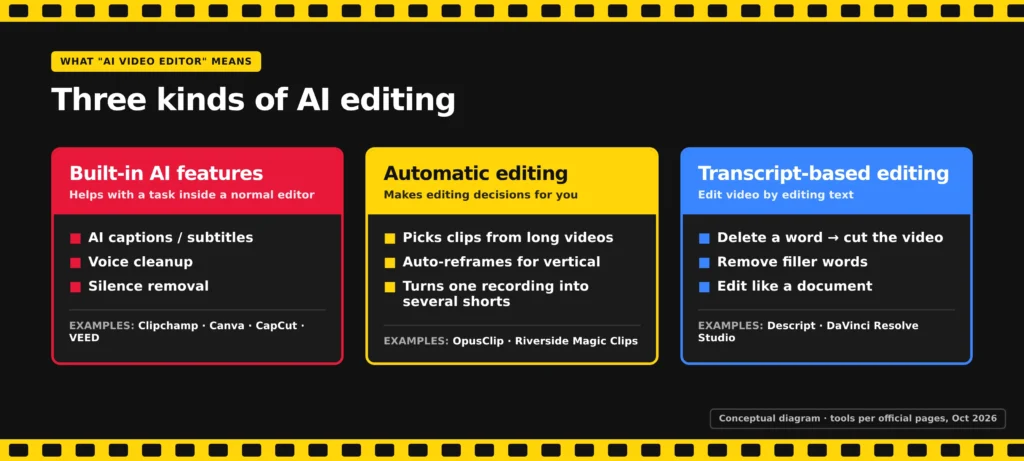
Built-in AI features help with a task inside a normal editor, such as captions or noise cleanup. Automatic editing makes editing decisions for you, such as choosing which moments become clips. Transcript-based editing lets you cut video by deleting words from a text transcript.
Best AI Video Editors for Beginners
Start with Clipchamp
Best for: beginners who want a free plan without a watermark.
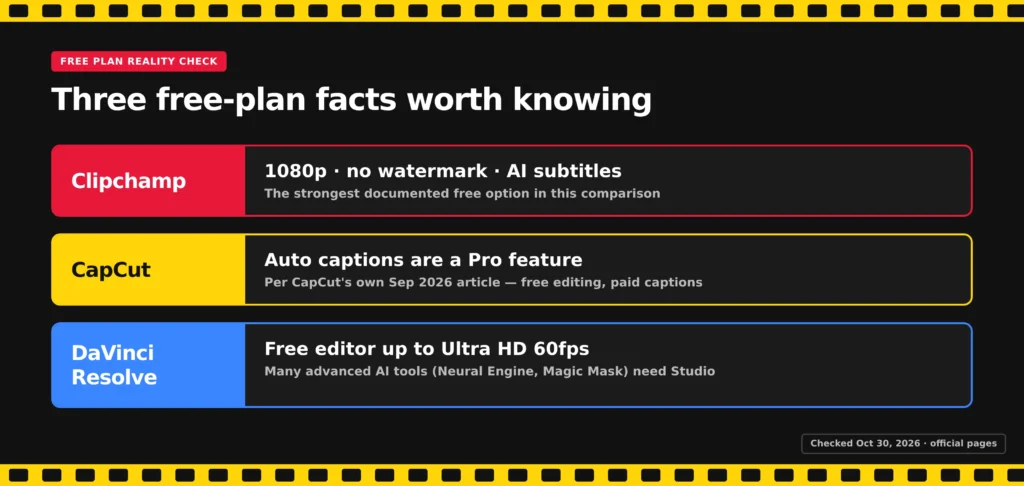
Microsoft’s Clipchamp pricing page says the free plan exports videos up to 1080p with no watermark and includes AI subtitles, AI voiceovers, and silence removal. You can use it in a browser or through the Windows app. That combination makes it the strongest documented option in this comparison for free, watermark-free 1080p video with AI captions.
Limitation: Clipchamp doesn’t automatically turn long videos into short clips, and its premium features come through a Microsoft 365 Personal or Family subscription rather than a standalone plan.
Canva
Best for: people who already make social graphics or presentations in Canva.
Canva describes its auto-caption generator as free, and translating captions into other languages is a Pro feature. If you already have your brand colours and templates in Canva, editing short videos there keeps everything in one place.
Limitation: the Canva feature page reviewed doesn’t state the free plan’s watermark policy, export resolution or paid price, so check those before relying on it for client work.
CapCut
Best for: free editing with high-resolution export, if you don’t need free auto captions.
CapCut is often recommended as a free AI editor, but its own Standard vs Pro comparison, published September 23, 2026, says the auto caption generator is a Pro feature. The same article says both tiers can export up to 8K, and lists background removal, motion tracking and noise reduction among the Pro tools. CapCut Pro costs $19.99/month or $179.99/year, according to CapCut, with prices varying by region and platform.
Limitation: if free automatic captions are your main reason for choosing CapCut, Clipchamp or Canva documents them on their free plans.
Best AI Video Editors for Social Media Shorts
Short-form tools fall into two groups. Automatic clipping tools scan a long video and choose moments to turn into shorts. Conventional editors with captioning give you the tools to cut and caption a short yourself.
OpusClip
Best for: turning podcasts, webinars or long YouTube videos into vertical shorts automatically.
According to OpusClip’s pricing page, the free plan includes 60 credits a month, clips up to 1080p, auto-reframe and AI captions. Free clips carry a watermark, can’t be edited, and can’t be exported after 3 days. The Starter plan ($15/month, billed monthly) removes the watermark and adds an editor. The Pro plan costs $14.50/month when billed yearly.
Limitation: OpusClip is built for repurposing existing long videos. If you’re editing a short from scratch, a conventional editor is a better fit.
VEED
Best for: browser-based editing with subtitles, especially for teams.
VEED’s plans page lists a free plan with watermarked videos, unlimited exports, 50 AI credits and 10 minutes of subtitles a month. The Creator plan removes the watermark and costs $12.25/month (billed yearly) or $25/month (billed monthly).
Limitation: 10 free subtitle minutes a month go quickly if you post daily, and the free plan’s export resolution isn’t documented.
If your shorts need background music, our guide to AI music generators compares options and their usage rights.
Best AI Tool for Talking-Head Videos and Podcasts
Riverside
Best for: recording and editing interviews, podcasts and talking-head videos in one place.
Riverside combines remote recording with editing. According to Riverside’s pricing page, its free plan includes 2 hours of multi-track recording (separate audio and video tracks for each person), listed as a one-off allowance rather than a monthly one, unlimited single-track recording, and Magic Clips, which picks short clips from your recordings. Free videos are limited to 720p and carry a Riverside watermark. Transcriptions, filler-word and silence removal, and audio enhancement are listed under the paid Pro plan, so the free plan doesn’t list auto-captions either.
Riverside’s pricing pages showed inconsistent annual totals when we checked, so we haven’t listed a price; check the current pricing page.
Limitation: at 720p with a watermark, the free plan is best for trying the workflow rather than publishing finished videos.
Best AI Video Editor for Script-Based Editing
Descript
Best for: anyone who finds a timeline intimidating and would rather edit text.
Descript transcribes your video, then lets you cut it by deleting words from the transcript, much like editing a document. According to Descript’s pricing page, the free plan includes 1 hour of transcription a month, exports up to 720p, one watermark-free export a month, Studio Sound (voice cleanup) for files up to 10 minutes, and removal of “um” and “uh.”
The Creator plan costs $12/month billed yearly or $15/month billed monthly and adds 10 hours of transcription, up to 4K export, and unlimited watermark-free exports.
Limitation: 1 hour of transcription a month and 720p export make the free plan a trial of the workflow for most regular creators.
Best AI Video Editing Software for Advanced Free Editing
DaVinci Resolve
Best for: people willing to learn a professional editor in exchange for a powerful free version.
Blackmagic Design says the free version of DaVinci Resolve supports virtually all 8-bit video formats at up to 60 frames per second in Ultra HD (3840×2160), along with multi-user collaboration and HDR grading. It runs on Mac, Windows and Linux.
DaVinci Resolve is a powerful free video editor, but not the strongest free AI video editor. Many of its advanced AI tools, including the DaVinci AI Neural Engine, Magic Mask, and text-based editing, are exclusive to the paid Studio version, which we found listed as a one-time purchase of $236. Studio also adds 10-bit video up to 120fps and resolutions beyond 4K. Blackmagic’s page doesn’t state its free-version watermark policy.
Limitation: Resolve has a much steeper learning curve than the beginner tools above. If you need to sharpen or upscale old footage, a dedicated upscaler may help; our Topaz Video AI pricing guide covers one option.
Paid professional alternative: Adobe Premiere Pro has a 7-day free trial but no free plan. Adobe lists the individual plan at $22.99/month on an annual plan billed monthly, with 25 monthly generative credits. It suits editors who already work in Adobe’s apps.
AI Video Editors vs AI Video Generators
An AI video editor works with footage you already have: it trims, captions, cleans up audio or picks out clips. An AI video generator creates new video from a text prompt or an image. Some products blur the line: Runway’s AI video editor uses its own AI video model to change real footage, such as relighting a scene or swapping a background, from a plain-language description.
ChatGPT is a general AI assistant, not a video editor. It can help you plan a video, write a script or draft captions, but you still need an editor like the ones above to cut and export the video itself.
How to Choose an AI Video Editor
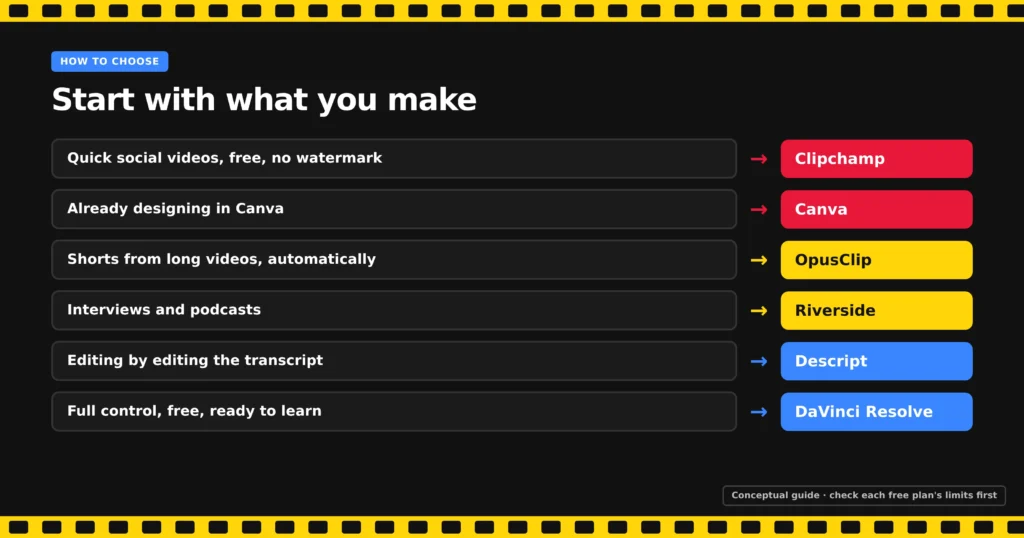
- Start with what you make. Long YouTube videos suit Descript or DaVinci Resolve. Shorts from existing long videos suit OpusClip. Interviews and podcasts suit Riverside. Quick social videos suit Clipchamp, Canva or CapCut.
- Check your device. DaVinci Resolve runs on Mac, Windows and Linux. Clipchamp works in a browser and on Windows. Riverside has web, Mac and mobile apps.
- Decide whether a watermark matters if you’ll publish free exports. Clipchamp documents watermark-free 1080p on its free plan. OpusClip, VEED and Riverside add a watermark on free plans, and Descript allows one watermark-free export a month.
- Check the export resolution. Free plans range from 720p (Descript, Riverside) to 1080p (Clipchamp, OpusClip) and Ultra HD (DaVinci Resolve).
- Check whether captions are free. Clipchamp, Canva and OpusClip include AI captions on their free plans. VEED limits them to 10 minutes a month, CapCut lists them as Pro, and Descript’s free caption allowance isn’t documented.
- Pay only when you hit a weekly limit. If the watermark, export resolution, or monthly allowance gets in the way of every video, a paid plan earns its cost.
For a wider look at tools for writing, design and scheduling alongside video, see our guide to the best AI tools for content creators.
Frequently Asked Questions
Can ChatGPT do video editing?
ChatGPT is not a video editor. It can help you plan a video, write a script, or draft captions, but you still need an editor like Clipchamp, Descript, or DaVinci Resolve to cut, caption, and export.
What is the best AI video editing app?
It depends on the job. Clipchamp is the clearest free option for beginners who don’t want a watermark, Descript is best for transcript-based editing, OpusClip is best for automatic shorts, and DaVinci Resolve is the most capable free editor for advanced editing.
What AI is better than CapCut?
No tool here beats CapCut at everything; each suits a different task. Descript is built for editing by transcript, OpusClip for automatically turning long videos into shorts, and Clipchamp includes AI captions on its free plan, which CapCut lists as a Pro feature. CapCut remains a capable free editor if you don’t need free captions.
Is there a free AI video editor with no watermark?
Clipchamp is the clearest documented option in this comparison: its free plan supports 1080p exports without a watermark and includes AI subtitles. DaVinci Resolve also has a free version, but the official page reviewed doesn’t document its watermark policy.
Sources
- Microsoft Clipchamp: Pricing
- Canva: Auto caption generator
- CapCut: CapCut Standard vs Pro (published by CapCut, Sep 23, 2026)
- OpusClip: Pricing
- VEED: Plans and prices
- Riverside: Pricing
- Descript: Pricing
- Blackmagic Design: DaVinci Resolve
- Adobe: Premiere Pro plans
- Runway: AI video editor
Keep Exploring