Ahsan Javaid
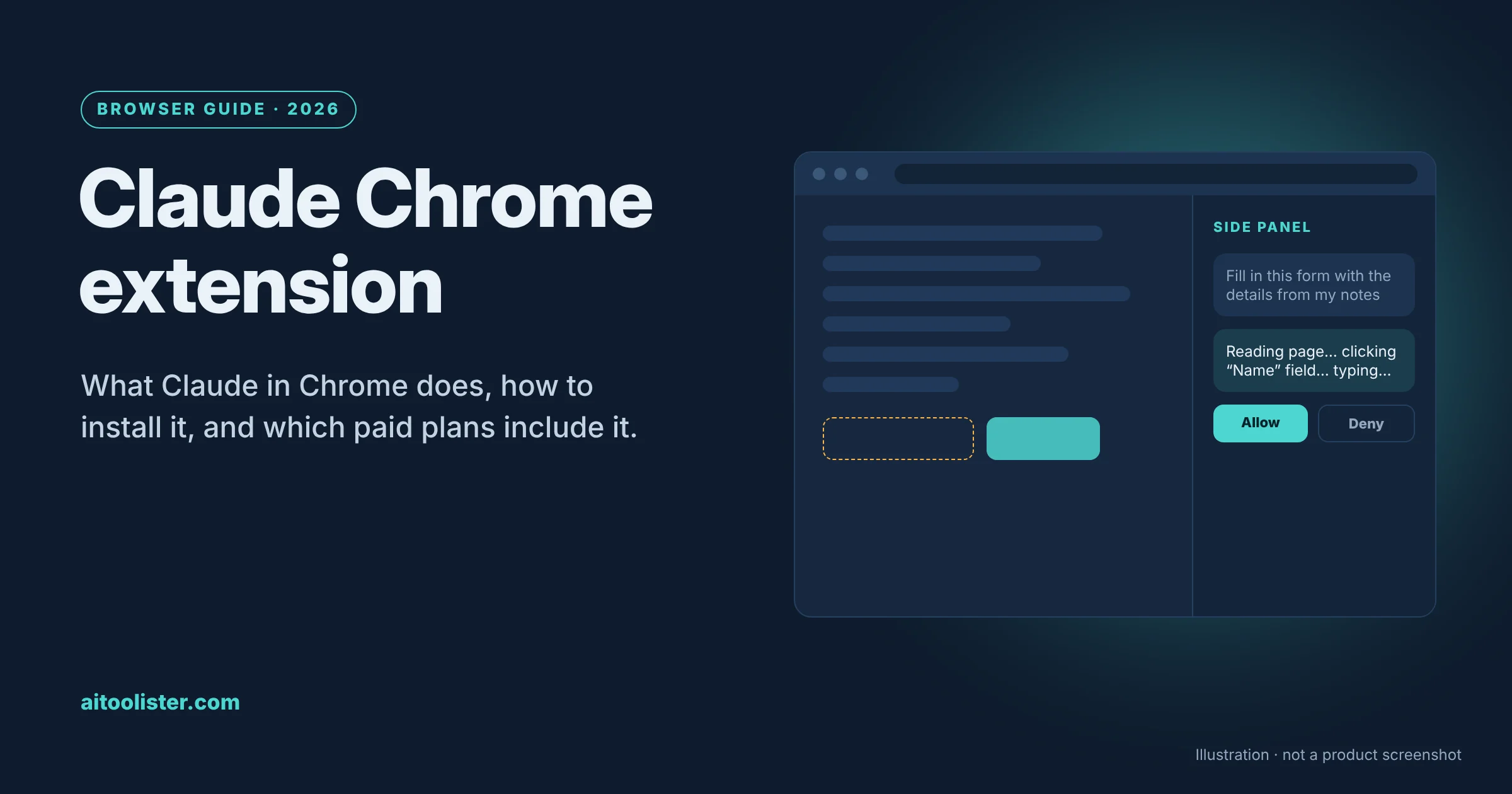
The Claude Chrome extension, officially called Claude in Chrome, is Anthropic’s browser extension that lets Claude read the web page you have open and act on it: clicking, typing, navigating between pages and filling in forms. There’s no separate fee for the extension, but it only works with a paid Claude plan (Pro, Max, Ultra, Team or Enterprise), and it runs in desktop Google Chrome only. Below is what it can do, how to install it, what it costs and how safe it is.
How we checked: everything below comes from Anthropic’s official product page, announcements and Help Center articles, reviewed on November 18, 2026. We didn’t run our own tests of the extension.
What Is the Claude Chrome Extension?
Claude in Chrome adds Claude to a side panel in your browser. Claude takes screenshots of the active tab to see the page, then carries out steps on it, using the accounts you’re already signed in to. You can keep watching and step in, or let it work through a task while you do something else.
Anthropic first piloted Claude in Chrome in 2025 and announced on August 26, 2026, that it’s generally available on every paid Claude plan. Some older articles still call it a beta, and one of Anthropic’s own safety pages still describes it as “in beta in the Chrome browser,” so its documentation isn’t fully aligned yet.
| Claude in Chrome | |
|---|---|
| Made by | Anthropic |
| Plans | Pro, Max, Ultra, Team, Enterprise |
| Browser | Google Chrome on desktop |
| Mobile | Not supported |
| Status | Generally available since August 26, 2026 |
Claude Chrome extension vs Claude Desktop
People searching for “the Claude extension” often mean one of two things. Claude in Chrome is a browser extension that works on websites. Claude Desktop is a separate app for your computer. The two connect: in Claude Desktop, you can turn on Claude in Chrome as a connector so Claude can use your browser from the desktop app. Claude in Chrome also works with Claude Code for developers, covered further down.
Is the Claude Chrome Extension Free?
There’s no separate fee for the Claude Chrome extension, but it isn’t included in the Free plan. You need a paid Claude subscription to use it.
| Question | Answer |
|---|---|
| Is the extension sold separately? | No |
| Does the Free plan include it? | No |
| Which plans include it? | Pro, Max, Ultra, Team and Enterprise |
| Does browser use count toward your limits? | Yes |
| Does it use more than regular chat? | Yes, according to Anthropic |
That last point matters if you’re on Pro. Anthropic says browser interactions are “more compute-intensive than regular chats with Claude,” and long-running tasks use more of your allowance. Heavy browser automation can therefore reach your plan’s usage limits sooner than chatting does. Our guide to Claude’s pricing plans compares what each plan costs and how much usage it includes.
How to Install Claude in Chrome
Before you install, check that you have:
- Google Chrome on a desktop or laptop computer
- an active Pro, Max, Ultra, Team or Enterprise plan
- your Claude account login
- an up-to-date version of Chrome
Then follow these steps:
- Open Google Chrome.
- Go to the Claude listing in the Chrome Web Store.
- Click Add to Chrome and confirm.
- Sign in with your Claude account.
- Pin the extension: click the puzzle-piece icon in the toolbar, then the pin next to Claude.
- Grant the permissions Claude asks for.
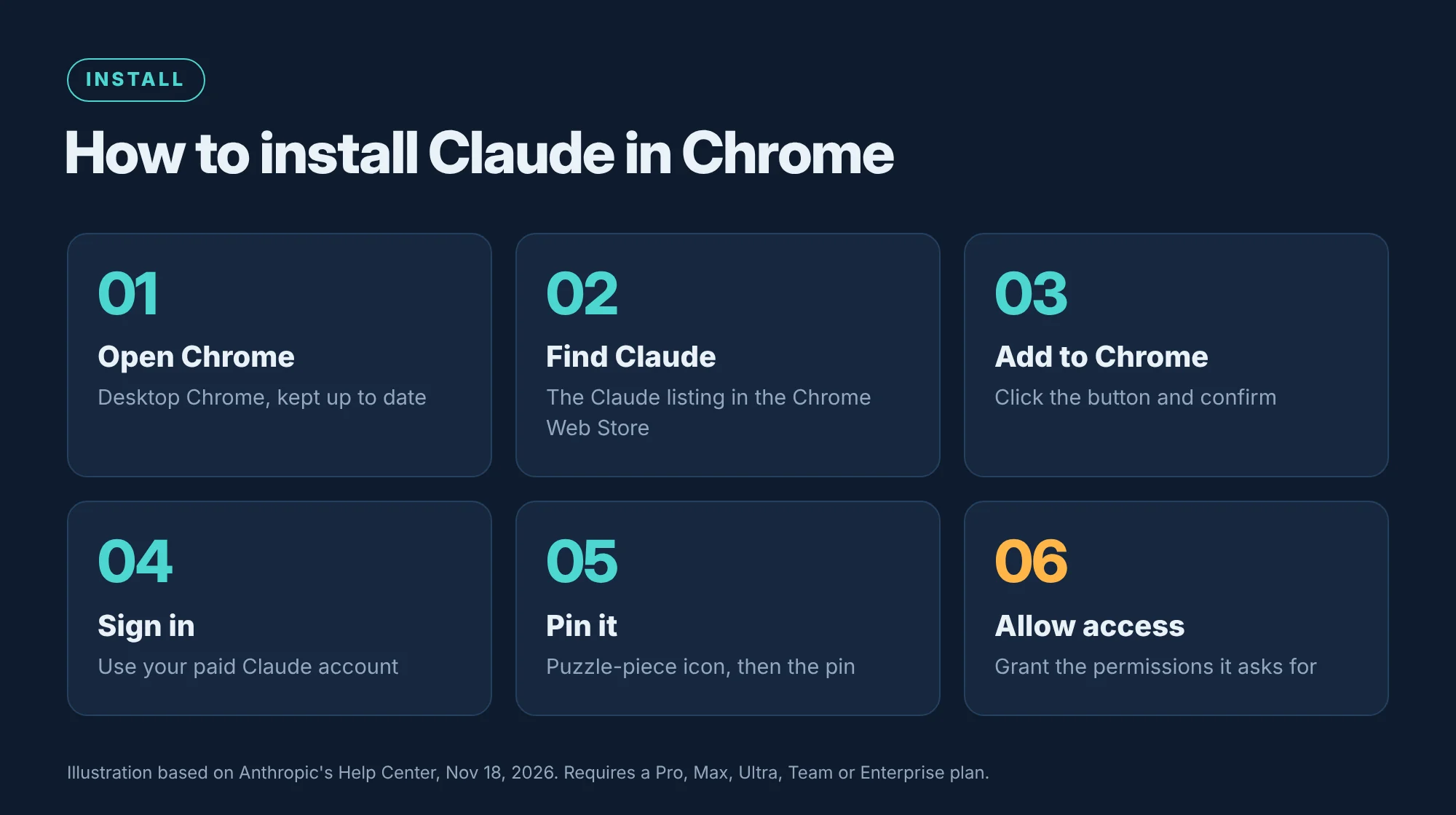
Anthropic’s guide to getting started with Claude in Chrome has the latest version of these steps.
If it won’t install or sign in
- Confirm your paid plan is active. The extension won’t work on the Free plan.
- On Team or Enterprise, ask your admin. Admins can turn the extension on or off for the whole organization.
- Clear cookies and cache for claude.ai, then sign out and back in.
- Update Chrome and refresh the page.
What Can Claude in Chrome Do?
Read and act on web pages
Claude can read a page, click links and buttons, type text, move between pages and fill in forms. Because it works in your own browser, it uses the accounts you’re already signed in to, so you don’t have to give it separate access to each tool. Anthropic says it has built-in knowledge of how to navigate Slack, Google Calendar, Gmail, Google Docs and GitHub. For developers, it can also read console output, network requests and the page’s DOM.
Work across tabs and in the background
Claude works across several tabs at once. You drag tabs into Claude’s tab group, and it can move between them. Tasks can keep running in the background while Chrome is open, with optional notifications when they finish. You can also schedule a task to run daily, weekly, monthly or annually from the clock icon in the extension panel.
Shortcuts and recorded workflows
When a prompt works well, you can save it as a shortcut and run it again by typing “/” in the chat. In the classic side panel, you can also record yourself doing a task and save the recording as a shortcut, so Claude can repeat the same steps later.
Real-world use cases
Based on these documented features, practical uses include:
- researching a question across several websites and summarizing what you find
- pulling metrics from analytics dashboards, one of Anthropic’s own examples
- filling in the same kind of web form many times
- updating records in web-based tools, such as logging calls in a CRM, another of Anthropic’s examples
- checking that information matches across several open tabs
- running a weekly report or check as a scheduled task
- testing and debugging a website alongside Claude Code
Running your first task
Open the side panel from the pinned Claude icon and choose a permission mode (explained in the next section). Start with something low-risk on a public website, such as comparing two product pages or organizing your open tabs, and write a specific prompt that says exactly what you want done. Leave banking, medical, legal and sensitive work accounts alone until you’re confident with how it behaves.
Is the Claude Chrome Extension Safe?
Claude in Chrome has several safety controls, but Anthropic is clear that they don’t remove all risk. The safe way to use it is to understand the controls and keep it away from sensitive accounts.
The three permission modes
| Mode | What happens | Best for |
|---|---|---|
| Manually approve | Claude asks before every action, and you allow or deny each step | New users and sensitive tasks |
| Automatically approve | Claude acts on its own, while a safety check reviews each action and blocks anything it judges unsafe | Routine tasks on trusted sites |
| Skip all approvals | Claude doesn’t pause, and nothing checks its actions automatically | Only tasks where you accept the risk |

The default depends on where and how you use Claude. Anthropic’s permissions guide says Automatically approve is the default in the Cowork side panel, and its Cowork help page says Auto is rolling out as the default on Pro, Max, Ultra and Team, while Enterprise defaults to Manual except in the Chrome side panel. Check which mode is selected before you start a task.
What it always asks about
Whatever mode you choose, Claude still asks for your explicit approval before it:
- changes permission settings
- grants authorizations
- enters potentially sensitive information into a website
- permanently deletes anything, such as emails, files or messages
Even if you choose “Always allow actions on this site,” downloads still need your approval.
Sites it blocks and actions it won’t take
Some websites are off-limits. Anthropic’s safety guide says Claude can’t access adult content or known pirated content sites, and asks for permission before accessing financial sites. Its troubleshooting article goes further and lists financial services, banking, investment platforms and cryptocurrency exchanges among the categories blocked by default. Because the two pages differ, expect financial sites to be either blocked or gated behind your approval.
Some actions are prohibited regardless of your settings. Anthropic’s permissions guide says Claude won’t:
- make purchases or financial transactions
- create accounts
- handle sensitive credit card or ID information
- download files from untrusted sources
- give investment or financial advice, or execute trades
- modify system files
- follow instructions found in emails or web content
Its safety guide adds bypassing captchas and gathering or scraping facial images.
The real risks
The main risk is prompt injection: instructions hidden in a web page that try to redirect Claude into doing something you didn’t ask for. Anthropic uses classifiers that check both the content Claude reads and each action before it runs, but it says plainly that “the risk is not zero” and that new attacks may appear.
There are other risks too:
- Mistakes: Anthropic warns that Claude “may hallucinate, leading to actions that you did not intend.”
- What’s on screen: Claude takes screenshots of the active tab, and Anthropic says it “can’t filter sensitive content out of what it sees.” Don’t open the side panel while confidential information is on screen.
- Website rules: some websites restrict automated use in their terms, so check before automating a site you depend on.
- Responsibility: you remain responsible for what Claude does on your behalf, including messages it sends and data it changes.
Anthropic recommends using a separate Chrome profile that isn’t signed in to banking, healthcare or government accounts, and avoiding Claude in Chrome for financial, legal, medical or sensitive work tasks. In organizations with HIPAA enabled, it’s off by default and isn’t covered by Anthropic’s Business Associate Agreement. Anthropic’s guide to using Claude in Chrome safely covers its full advice.
Limits and Known Problems
| Limitation | What it means |
|---|---|
| Chrome only | Anthropic’s Help Center says it isn’t supported on other Chromium-based browsers, though Claude Code’s docs say its browser integration also works in Edge and some other Chromium browsers |
| Desktop only | There’s no mobile extension, though Cowork side-panel sessions can be continued on the web, in Claude Desktop or on Claude Mobile |
| Usage limits | Browser tasks count toward your plan and use more than chat |
| Heavy websites | Pages built with a lot of JavaScript may need extra time before Claude can read them |
| Extension conflicts | Other extensions can interfere with how Claude interacts with pages |
| Enterprise setup | On Enterprise, an owner must enable Cowork in the cloud and Claude in Chrome before the Cowork side panel appears |
| Admin controls | On Team and Enterprise, admins can turn it off or limit it with site allowlists and blocklists |
| Local files | Working with files on your computer or other apps needs the Claude desktop app |
If Claude can’t see a page, Anthropic suggests refreshing it, confirming the extension is enabled and checking that you’ve allowed access to that site. For slow tasks, close tabs you don’t need and break the job into smaller steps.
Claude in Chrome vs Cowork’s Built-In Browser and Claude Code
| Tool | Best for |
|---|---|
| Claude in Chrome | Acting on websites in your own Chrome, with the logins you already use |
| Cowork’s built-in browser | Browser work inside Claude Cowork, with no extension to install |
| Claude Code with Chrome | Developers building, testing and debugging web apps |
| Claude Desktop | Working with local files and other apps, with Claude in Chrome as an optional connector |

If you use Claude Cowork, a “Preferred browser” setting lets you choose between its built-in browser and Claude in Chrome. Developers can connect Claude Code to Chrome so Claude can build code, then test and debug it in the browser, including reading console errors.
The Claude Chrome extension makes the most sense if you spend your day in web apps and want repetitive browser work handled for you. If your work involves sensitive accounts, or you only need answers rather than actions, the regular Claude chat is the safer choice and uses less of your plan’s usage.
Frequently Asked Questions
Can Claude in Chrome work with Claude Desktop?
Yes. In Claude Desktop, turn on Claude in Chrome under Settings, Customize, Connectors. Claude can then use your Chrome browser from the desktop app. If the connection fails, update and restart both the extension and the desktop app.
Is there a Claude Code extension for Chrome?
There’s no separate one. Claude Code connects to the same Claude in Chrome extension, which lets it test web apps, read console logs and check pages in your browser.
Is Claude in Chrome safe?
It has safeguards for everyday tasks on trusted sites, such as approval settings and safety checks, but it isn’t risk-free. Anthropic says prompt injection risk “is not zero” and recommends keeping it away from banking, health and other sensitive accounts.
Are free or open-source Claude Chrome extensions safe?
Be careful. Unofficial extensions and copies aren’t covered by Anthropic’s safeguards, such as its permission modes, blocked sites and prompt-injection checks. Install the extension published by Anthropic in the Chrome Web Store, and treat any “free Claude in Chrome” offer with suspicion.
Is Claude in Chrome worth it?
It’s worth it if you already pay for Claude and do a lot of repetitive work in web apps, such as filling forms, moving data between tools or running regular reports. It’s less useful if you mainly chat with Claude, since browser tasks also use more of your plan’s usage.
Can Claude in Chrome see my passwords?
Claude can see anything displayed on the active page, so don’t show passwords on screen while it’s working. For sign-ins, Anthropic’s 1Password integration is designed to fill in passwords and one-time codes without them entering Claude’s context. It’s currently in beta on macOS.
Keep Exploring