Ahsan Javaid
The best text-to-video AI depends on what you’re making. For short cinematic clips, Google Vids gives personal Google accounts 10 free Veo 3.1 generations a month, while Runway and Kling AI are the stronger paid options. For a full video built from a script, InVideo AI offers a free account to start with, though it doesn’t say how much text-to-video the free credits cover. For a talking presenter, Synthesia and HeyGen both have free tiers with watermarks.
None of these is free without limits. This guide compares eight tools by what you can actually make on each free plan, the watermark, and whether you can use the result commercially.
Last checked: November 3, 2026
How we checked: We checked free plans, limits, and prices on each vendor’s official pricing, help, and product pages on November 3, 2026. This is a documentation-based comparison, not a claim that AIToolister tested every tool. Where a vendor doesn’t publish a detail, the tables say “Not stated.”
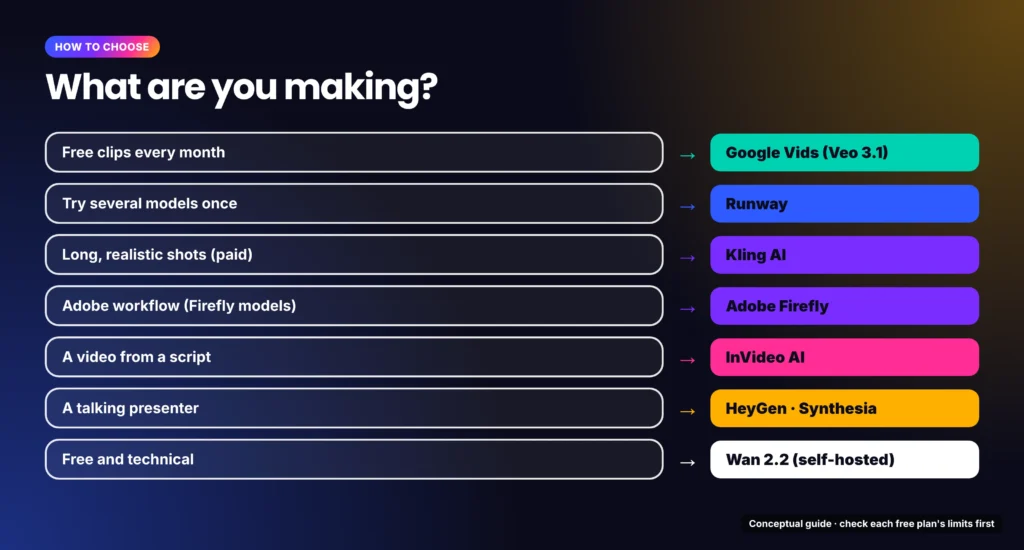
Best Text-to-Video AI by What You Need
| If you need | Start with | Why |
| Free generations every month | Google Vids (Veo 3.1) | 10 Veo 3.1 generations a month on a personal Google account |
| A one-time test of several models | Runway | 125 free credits that don’t expire |
| Long, realistic clips on a paid plan | Kling AI | Kling 4.0 supports native 30-second generation; paid plans add watermark removal and commercial use |
| A scripted social video | InVideo AI | Free account with weekly-resetting credits; text-to-video allowance not stated |
| A talking presenter | HeyGen or Synthesia | Free tiers, but watermarked and length-limited |
| A fully free, technical route | Wan 2.2 | Open-source model you run on your own GPU |
Three Kinds of Text-to-Video AI
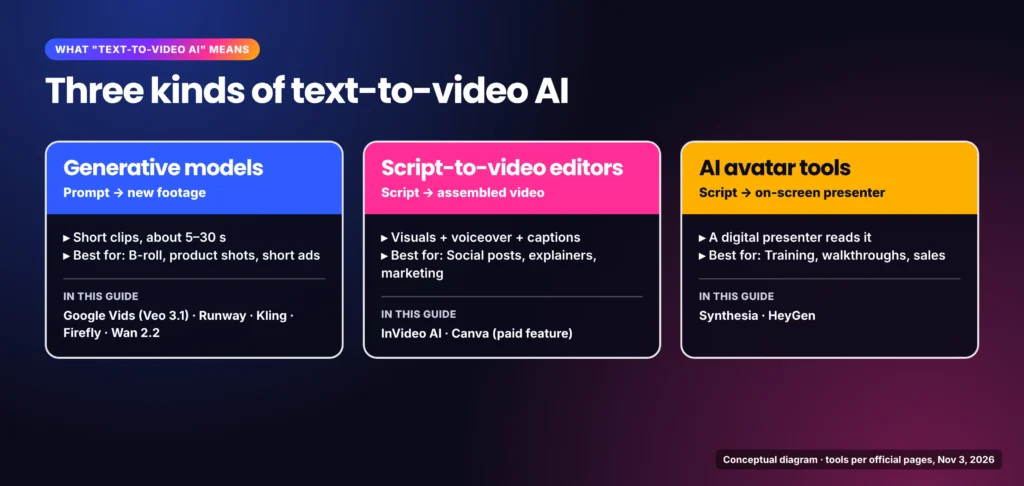
“Text-to-video AI” covers three different kinds of tools. Knowing which one you need narrows the list quickly.
Generative video models
Generative models such as Veo, Runway’s Gen-4.5 and Kling create new footage from a written prompt. They’re best for B-roll, product shots, short ads and visual ideas. Clips are short, usually 5 to 30 seconds, so longer videos require generating several clips and editing them together.
Script-to-video editors
Script-to-video editors turn a script or idea into a finished video. They combine AI-generated or stock visuals with voiceover, music and captions on a timeline you can edit. They suit social posts, explainers and marketing videos where the message matters more than cinematic footage.
AI avatar tools
Avatar tools put a digital presenter on screen to read your script. They’re built for training videos, product walkthroughs, sales messages and translated versions of the same video.
If you want to edit footage you’ve already recorded, rather than generate new video, see our guide to the best AI video editing software.
Free Plans Compared: Credits, Length, Watermark and Commercial Use
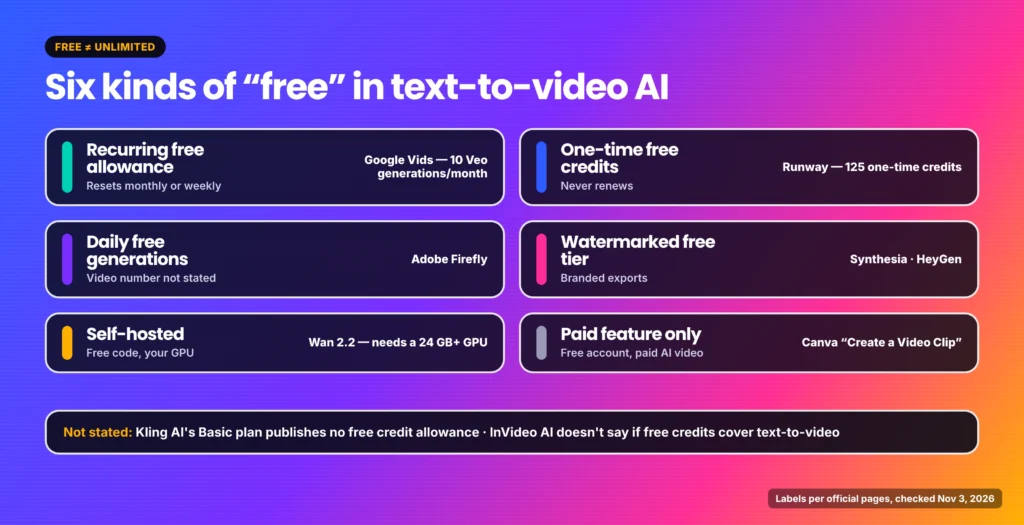
A free plan isn’t the same as free unlimited generation. Some tools offer a recurring allowance, some give a one-time credit balance, and some are free to start but watermark every export.
Free-access labels used in this guide
- Recurring free allowance: the vendor states a monthly or weekly allowance that resets.
- One-time free credits: free credits that don’t renew.
- Daily free generations: the vendor says free generations refresh daily but doesn’t give a number for video.
- Watermarked free tier: a free tier exists, but exports carry the vendor’s branding.
- Self-hosted: the model is free to download, but you supply the hardware.
- Paid feature only: a free account exists, but text-to-video itself requires a paid plan.
Comparison table
| Tool | Free access | Free allowance | Video length | Watermark on free | Commercial use | Paid from |
| Google Vids (Veo 3.1) | Recurring free allowance | 10 Veo generations a month | Not stated | Not stated | Not stated for the free allowance; review Google’s terms | Google AI plans |
| Runway | One-time free credits | 125 credits (about 10 seconds of Gen-4.5) | Depends on credits | Watermark-free export not documented for Free; “No watermarks” is a Standard feature | Not stated | $12/mo billed annually, $15 monthly |
| Kling AI | Free account, allowance not stated | Not stated | Up to 30 seconds natively (Kling 4.0) | Watermark removal is paid-only | Paid plans only | $10/mo ($6.99 the first month) |
| Adobe Firefly | Daily free generations | Video number not stated | 5-second videos on paid plans | Not stated | Firefly-model outputs described as commercially safe (not partner models) | $9.99/mo in the US; varies by region |
| Wan 2.2 | Self-hosted | No limit beyond your hardware | Not stated | None | Apache 2.0 licence; you’re responsible for lawful use | Free software |
| InVideo AI | Free account; text-to-video allowance not stated | Limited credits, reset weekly | Not stated | Not stated | Not stated | $10/seat/mo billed annually |
| Synthesia | Watermarked free tier | 10 minutes of video a month | Up to 3 minutes | Synthesia logo | Not stated | See current pricing |
| HeyGen | Watermarked free tier | 3 videos a month | Up to 1 minute each | Yes | Not stated | $24/mo billed annually, $29 monthly |
What free actually gets you.
| Free tier | What you can realistically make |
| Google Vids | Up to 10 short Veo 3.1 clips a month |
| Runway | About 10 seconds of Gen-4.5 video in total, once |
| Synthesia | Up to 10 minutes of watermarked avatar video a month, shared by link (downloads start on the paid Starter plan) |
| HeyGen | Three watermarked avatar videos a month, up to 1 minute each |
| Wan 2.2 | As many clips as your GPU can handle |
A free plan usually doesn’t include clean commercial exports. Common restrictions include watermarks, short maximum durations, link-only sharing, limited credits, and unclear commercial terms.
Best AI Video Generators for Cinematic Clips and B-Roll
Google Vids with Veo 3.1: best free option
Google Vids is Google’s video editor, and it includes Veo 3.1 for generating clips from text. Since April 2026, Google says “all personal accounts now get 10 video generations every month at no cost”. A June 2026 update also lets you extend existing Veo clips into longer ones, and you can arrange clips with music and text on the same timeline.
That makes Google Vids the only tool in this comparison with a clearly numbered recurring free video-generation allowance. The limitation is what Google doesn’t state for free users: clip length, watermarking and commercial-use terms. AI avatars in Vids are tied to paid Google AI Pro and Ultra plans.
Note that generating video directly in the Gemini app needs a Google AI plan for personal accounts. The free route to Veo is through Vids.
Runway: best for testing several models
Runway is a creative platform that runs its own Gen-4.5 model alongside partner models. On paid plans, its pricing page lists Kling 4.0 and Seedance among the available models. The free plan gives 125 one-time credits that don’t expire. At Gen-4.5’s rate of 12 credits per second, that’s about 10 seconds of video.
The free plan covers “a selection of generative creative models,” not the full lineup. “No watermarks” is listed as a feature of the paid Standard plan, which costs $12 a month billed annually or $15 monthly for 625 credits a month. That’s about 52 seconds of Gen-4.5.
Runway’s free plan doesn’t document watermark-free exports. Watermark removal is listed only as a Standard-plan feature.
To see how far the free credits go: if you generate five 2-second test clips at 12 credits per second, you’ve spent 120 of your 125 credits, and you may keep only one of those clips. Runway suits people who want to compare several leading models before committing to one, but the free credits don’t renew.
Kling AI: best for longer, realistic shots
Kling AI was the lead recommendation in Google’s AI Overview for this search. Kling’s own membership page describes its current model, Kling 4.0, as supporting dynamic motion, reference images and “native 30s-generation.” That’s longer than most generative models produce in one pass.
Kling AI is worth testing if you want a leading generative model, but its free Basic plan doesn’t include a recurring credit allowance, watermark removal or commercial-use rights. Those, along with 1080p and 4K generation, come with paid plans. Standard costs $10 a month ($6.99 for the first month) and includes 660 credits a month.
Adobe Firefly: best for Adobe users
Adobe’s free Firefly plan gives “free daily generations,” but Adobe doesn’t state how many of those can be video. Paid plans make the video allowance clear: Firefly Standard starts at $9.99 a month in the US and includes up to 20 five-second videos. Adobe’s page may show local currency and taxes, and prices vary by region.
Firefly’s main advantage is its commercial-use stance. Adobe says outputs from its own Firefly models are safe for commercial use. That applies to Adobe’s Firefly models, not automatically to outputs from the partner models available in Firefly, such as Google, OpenAI or Flux, which Adobe says users must assess separately. If commercial safety matters, check which model generated each clip.
Script-to-Video Editors (Free-to-Start and Paid)
InVideo AI
InVideo AI turns prompts and scripts into videos and offers a free account without card details. Free users get limited credits that reset every Monday at 12 a.m. UTC. InVideo’s help centre lists image generation, image-to-video and sharing videos on social media as free features. It doesn’t confirm that free credits cover generating a video from a text prompt or script, so treat InVideo as a free account to explore, not a confirmed free text-to-video tool. Paid plans start at $10 per seat per month, billed annually.
Canva (paid feature)
Canva’s “Create a Video Clip” generates 8-second clips with audio, or 6-second clips without. Canva’s help page doesn’t document free access to this feature, so this guide treats it as a paid feature, not a free pick. Canva remains useful for assembling AI clips into social posts, but you shouldn’t count on it for free text-to-video.
VEED and Kapwing also offer AI video tools, but neither documents free text-to-video terms clearly enough to include here. We cover both as editors in our AI video editing software guide.
Best AI Avatar Tools for Talking-Head Videos
Synthesia
Synthesia’s free Basic plan includes 10 minutes of video a month, videos up to 3 minutes long and 9 AI avatars, with the Synthesia logo on every video. Free videos are shared by link. Downloading MP4 files and removing the logo start on the paid Starter plan. Synthesia is built for business use, such as training, onboarding and internal communication, and supports 140+ languages and voices. Prices vary, so check Synthesia’s current pricing page.
HeyGen
HeyGen’s free plan includes 3 videos a month, up to 1 minute each, with a watermark, plus access to 500+ ready-made presenters and one custom video avatar. The paid Creator plan removes HeyGen branding and adds 1080p export. It costs $29 a month, or $24 a month billed annually.
For avatar-style video ads in the UGC format, see our breakdown of Arcads AI pricing.
Is There a 100% Free Text-to-Video AI?
Yes, but with conditions. Every free option in this guide comes with at least one trade-off: a watermark, short clips, a small credit balance, or running the model yourself.
Wan 2.2: the self-hosted exception
Wan 2.2 is an open-source video model released under the Apache 2.0 licence. Its 5B model generates 720p video at 24 frames per second and, according to the project, can run on a consumer GPU with 24 GB of memory, such as an RTX 4090. The larger 14B models need a GPU with at least 80 GB of memory.
Wan 2.2 is free software, not a free hosted service. There are no credits or watermarks, but you need a compatible GPU, technical setup, storage and time, or paid cloud GPU access. A 24 GB card like the RTX 4090 is high-end consumer hardware. The licence says the project claims no rights over generated content, and you remain responsible for using it lawfully.
Can You Use AI-Generated Videos Commercially?
It depends on the tool, the plan and what’s in the video. A paid plan doesn’t automatically make every output safe to use. Before using AI video in an ad, product or client project, check four things:
- Does your plan permit commercial use? Kling, for example, lists commercial use only on paid plans.
- Does it require a watermark or attribution? Watermarked free exports usually aren’t suitable for commercial work.
- Does the video show a real person, a brand, a copyrighted character or licensed material? Generated likenesses and recognisable characters can raise rights issues regardless of your plan.
- Does the platform you’re publishing on allow AI-generated video? Some platforms require you to label AI content.
Where a tool’s commercial terms are “Not stated” in the table above, read its terms of service before using the output commercially.
FAQ
What is the best free text-to-video AI?
Google Vids is the best free option for most people. Personal Google accounts get 10 Veo 3.1 generations a month at no cost. For unlimited free generation, Wan 2.2 is open source, but you need a powerful GPU to run it.
Can AI make videos from text?
Yes. Generative models such as Veo, Runway and Kling create short clips from a prompt. Script-to-video editors such as InVideo build longer videos from a script, and avatar tools such as Synthesia and HeyGen turn a script into a presenter-led video.
Can ChatGPT convert text to video?
ChatGPT can write a script, plan scenes and draft prompts for a video generator. On its own, it isn’t a dedicated video generation or editing tool. To produce a finished video, use a text-to-video generator or a connected video workflow.
Can I use AI-generated videos commercially?
It depends on the generator’s plan, the specific model and what appears in the video. A paid plan may permit commercial use, but it doesn’t clear rights to real people, brands, copyrighted characters or licensed material.
Which AI is best for video-to-text?
Turning video into text is transcription, which is a different task. Use a transcription or captioning tool rather than a text-to-video generator.
Bottom Line
Choose by the video you need, not by a single “best” tool. Start with Google Vids for free Veo 3.1 clips, use Runway to compare models with a one-time credit balance, and move to Kling AI or Adobe Firefly on a paid plan when you need watermark-free, commercial footage. For scripted videos, try InVideo AI. For a presenter, use HeyGen to test short watermarked videos or Synthesia for link-shared business videos; both need paid plans for clean exports. Wan 2.2 is the free route if you can run it yourself. To finish your videos with original music, see our guide to the best AI music generators.
Keep Exploring